People
Labour
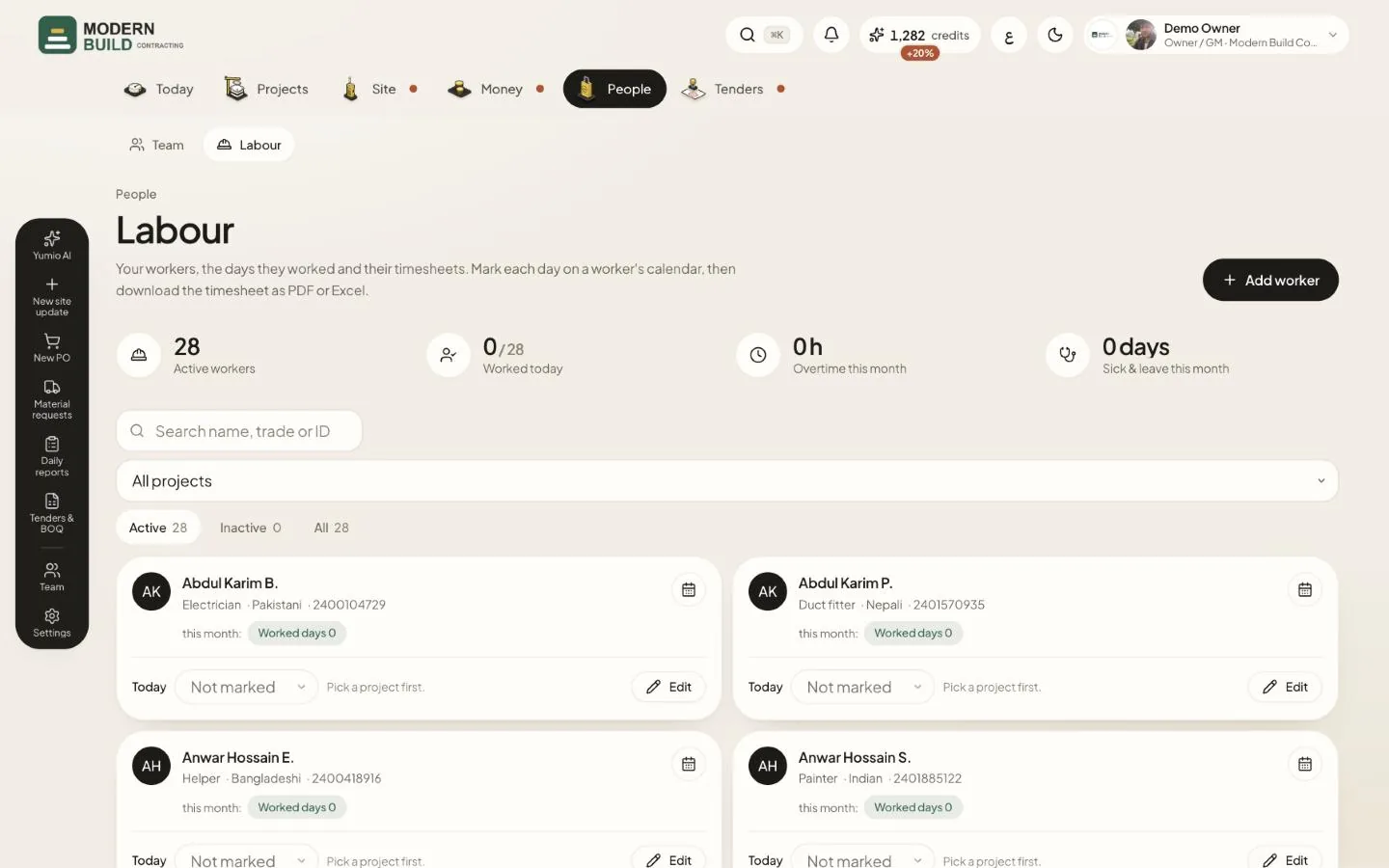
Labour shows your workers, the days they worked and their timesheets. The owner, project managers and HR add workers; they, site engineers and foremen mark days on the projects they can see.
Step by step
- 1Press Add worker and fill in the worker's details. Give a daily wage: that is how labour reaches the project's cost.
- 2Find workers with Search name, trade or ID, the project list (All projects) and Active / Inactive / All.
- 3Mark today on a worker's card: pick the day in the Today list (for example Full day or Half day). It is saved as you pick it.
- 4Press the calendar button (Attendance calendar) to open the worker. Tap a day on the calendar to mark it, or press Fill empty days.
- 5On the worker's page, the Timesheet card downloads any period as PDF or Excel.
What you see on the screen
- 6Worked today is the number of active workers with a worked day today, out of all active workers.
- 7Overtime this month adds the overtime hours of worked days; Sick & leave this month counts sick-leave and leave days.
- 8No daily wage on a worker means their days add nothing to project cost.
More in this section: People
Still stuck?
Write to us in Arabic or English and we will help.