People
Team
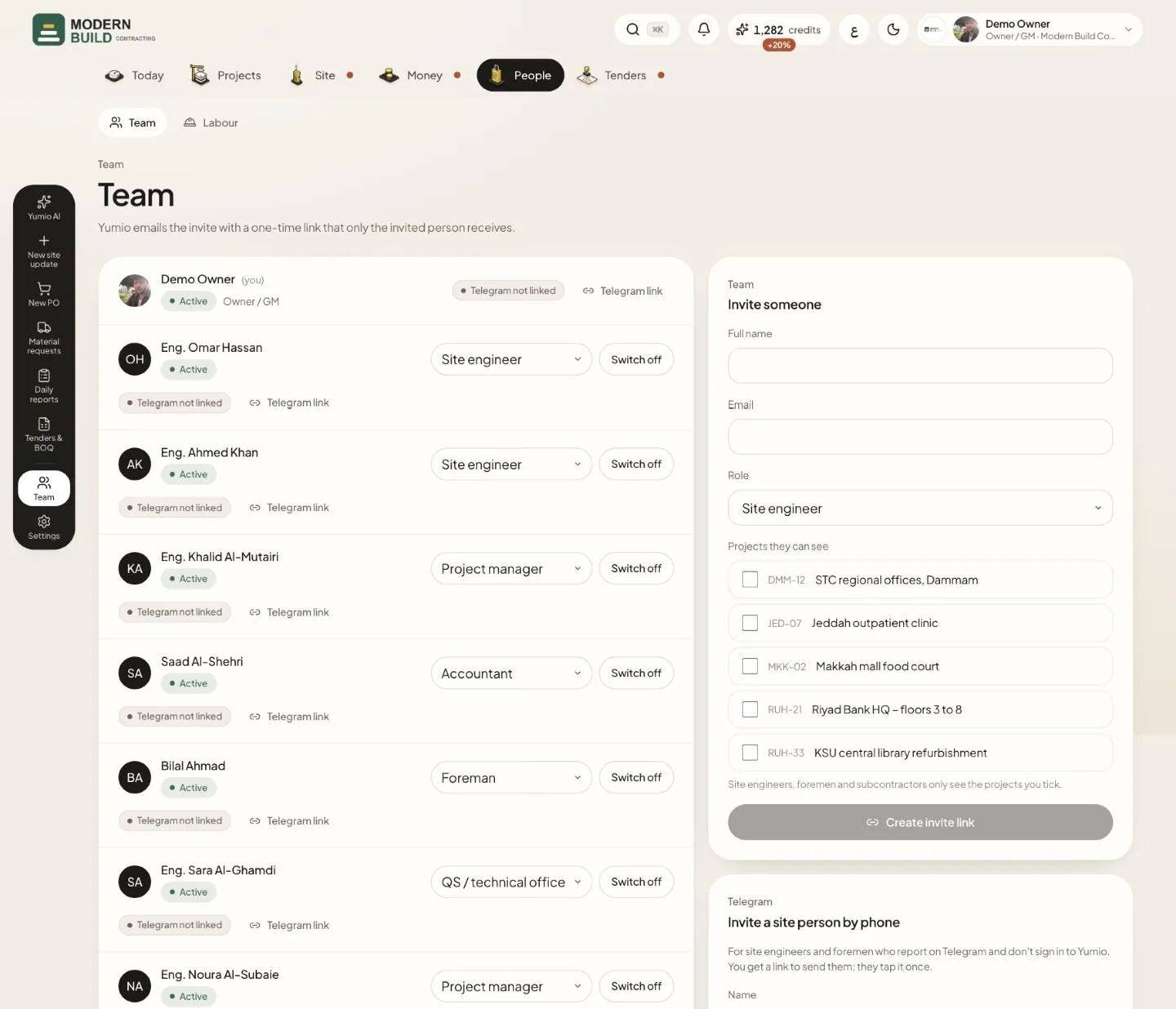
Team lists everyone in your company with their role. The owner and project managers invite people; only the owner changes roles or switches people off.
Step by step
- 1In Invite someone, type the Full name and Email, and pick the Role.
- 2For a site engineer, foreman or subcontractor, tick the projects under Projects they can see: they see only those.
- 3Press Create invite link. Yumio emails a one-time link to that person; you can also copy the link or send it on WhatsApp.
- 4To change someone's role, pick it in the list on their line. Switch off stops their access; Switch on brings it back.
- 5Press Telegram link on a person to make their one-time Telegram link. Once they tap it, their updates are filed under their name.
- 6For site people who report on Telegram and don't sign in to Yumio, use Invite a site person by phone and send them the link it makes.
What you see on the screen
- 7Under each name: Active, Invited (the invite is not accepted yet) or Switched off.
- 8Telegram linked or Telegram not linked says whether Yumio knows that person's Telegram.
More in this section: People
Still stuck?
Write to us in Arabic or English and we will help.