Yumio Help Center
Each guide shows a real Yumio screen. The red numbers on the picture match the numbered steps.
Getting started
1 guidesSigning in, finding your way around and who sees what.
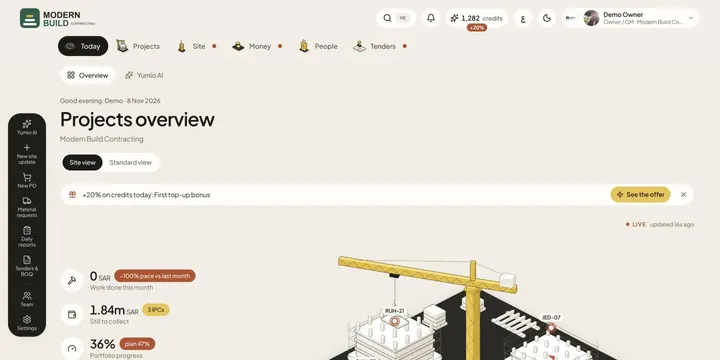
Today
4 guidesYour morning view of every project, what needs you, and Yumio AI.
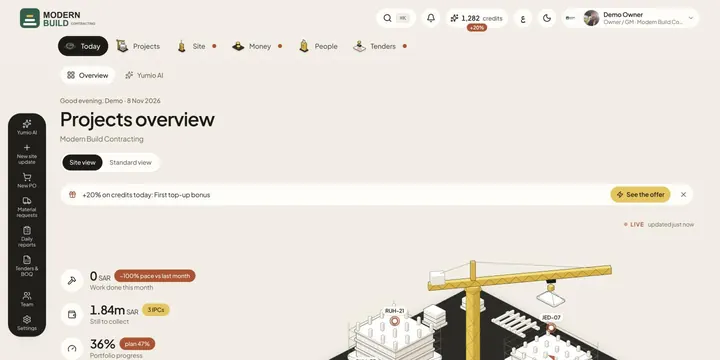 TodayThe Today page shows your company's day at a glance: headline figures, what needs you, and every project in a site view or a standard view.
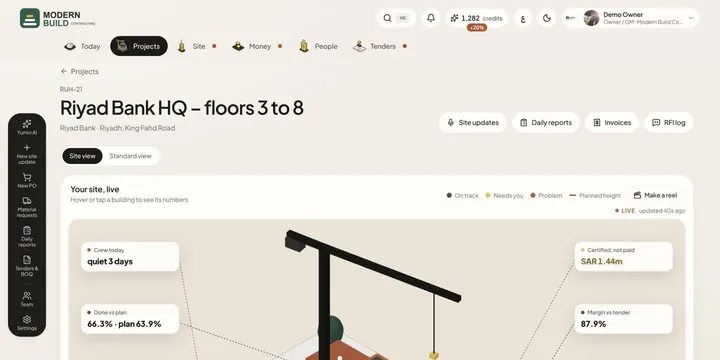 Site viewSee a project, or all your projects, as a live 3D site: buildings rise with the work done and their colour says what needs a look.
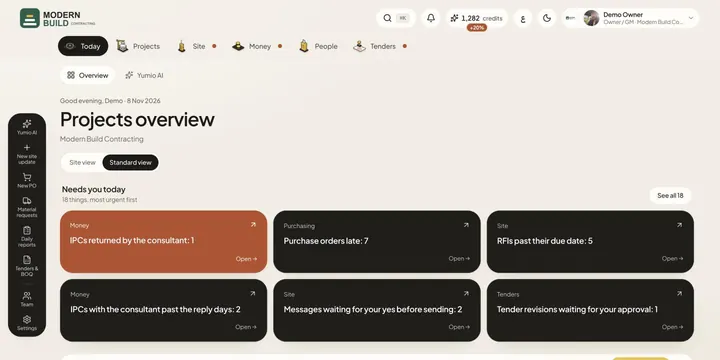 Needs you todayOne list of everything waiting on you across the company, most urgent first, each a tap away from the page where you deal with it.
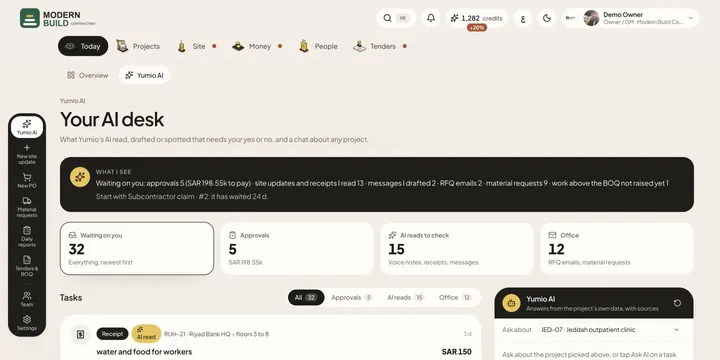 Yumio AIApprove or reject what Yumio's AI read, drafted or spotted, and ask the AI about any project, with answers from the project's own data.
Projects
13 guidesEverything inside a project: BOQ, programme, money, snags, drawings and more.
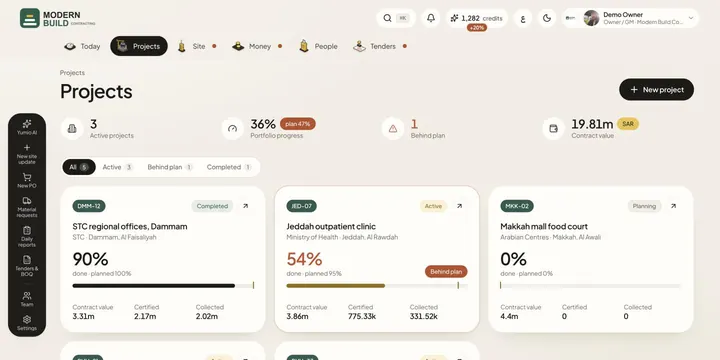 ProjectsSee every project's progress against its plan, find the ones behind, add a new project and open any of them.
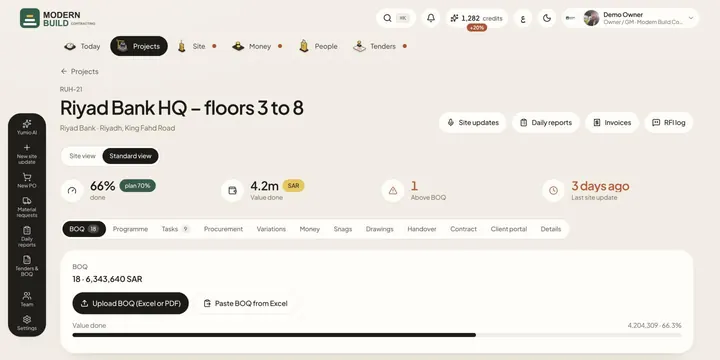 Project BOQLoad the project's BOQ from Excel, PDF or a paste, and follow how much of each line is done from confirmed site updates.
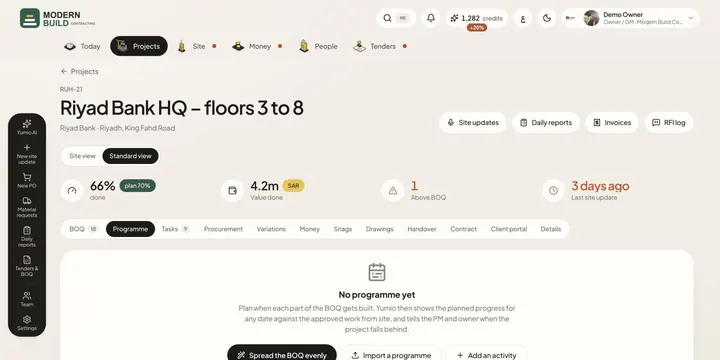 ProgrammePlan when each part of the BOQ gets built, then see planned against done, days of delay and the S-curve for any project.
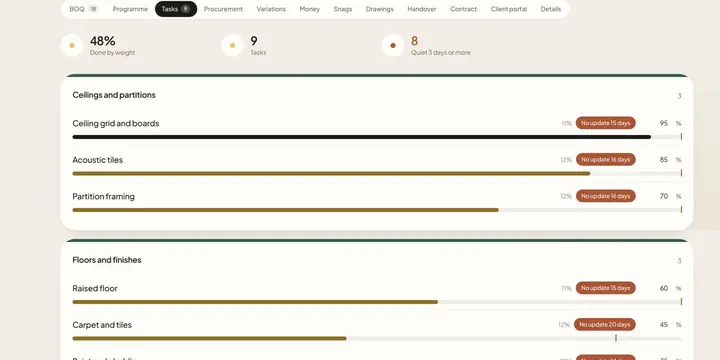 TasksKeep the project's tasks by phase, with each task's weight and % done, and spot the ones with no update for three days.
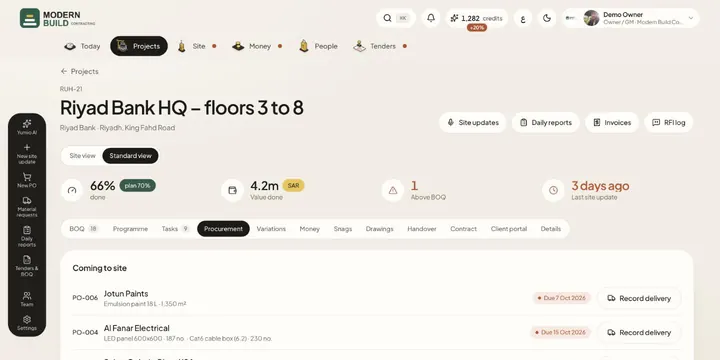 Project procurementSee what this project must order and by when, its purchase orders, deliveries coming to site and its material requests.
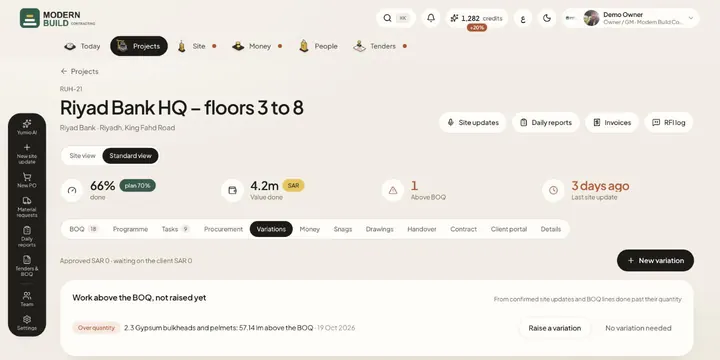 VariationsRaise and price variations (VO-001…), send them to the client, record the decision, and add approved lines to the BOQ.
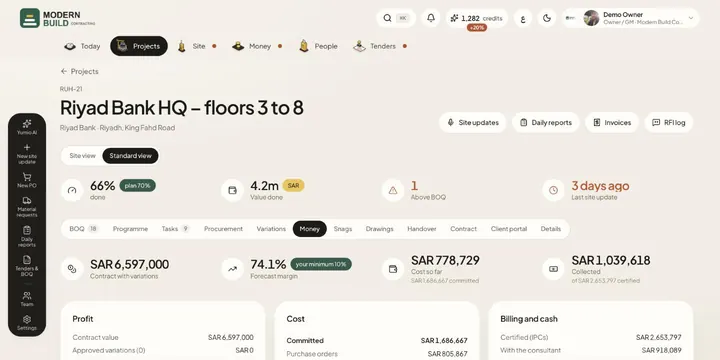 Project moneySee the project's forecast margin, cost so far and committed, what was certified and collected, cash flow, retention and the advance.
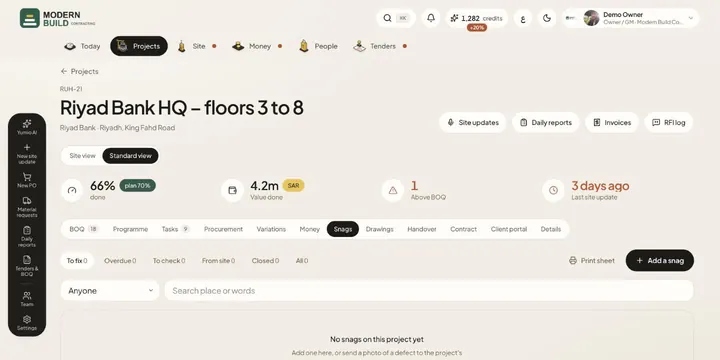 SnagsKeep the project's snag list: where, what, photos and who fixes it by when, then check each fix and close it.
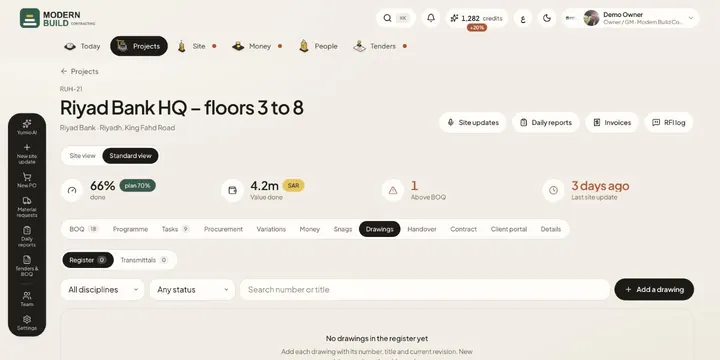 DrawingsKeep the drawing register with the revision in force, and send drawings to the client or subcontractors on a transmittal.
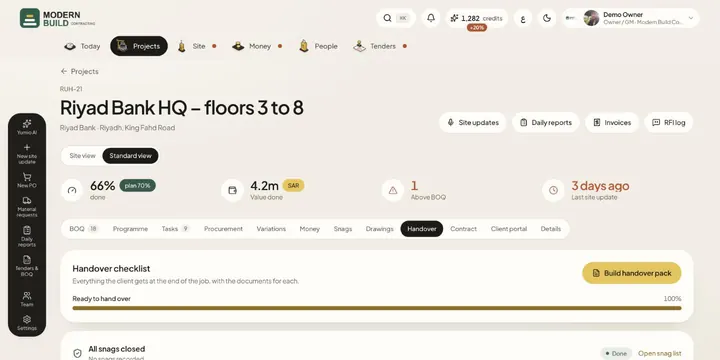 HandoverTrack everything the client gets at the end of the job, upload each document, and build the handover pack in one go.
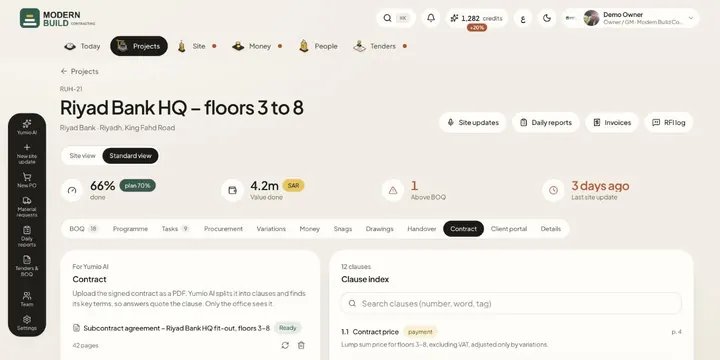 ContractUpload the signed contract as a PDF: Yumio AI splits it into clauses and finds its key terms, so answers quote the clause.
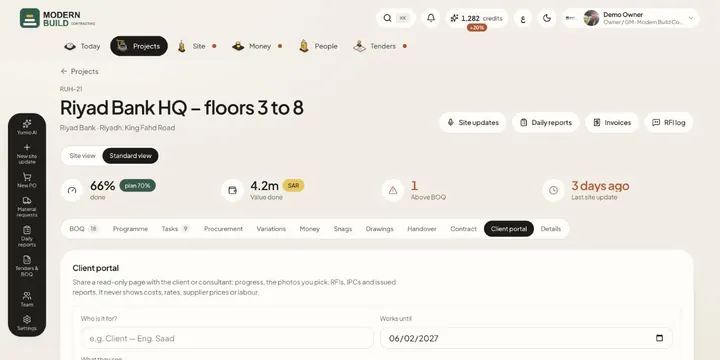 Client portalShare a read-only page with the client or consultant: progress, chosen photos, RFIs, IPCs and issued reports, never costs.
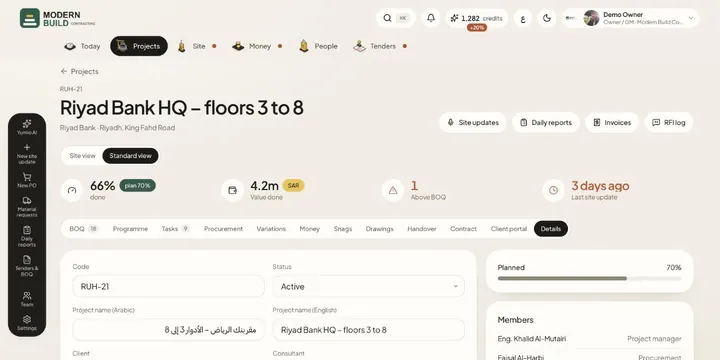 Project detailsChange the project's code, names, client, consultant, dates, value and terms, and see who is on the project.
Site
6 guidesSite updates by voice or photo, daily reports, RFIs and inspections.
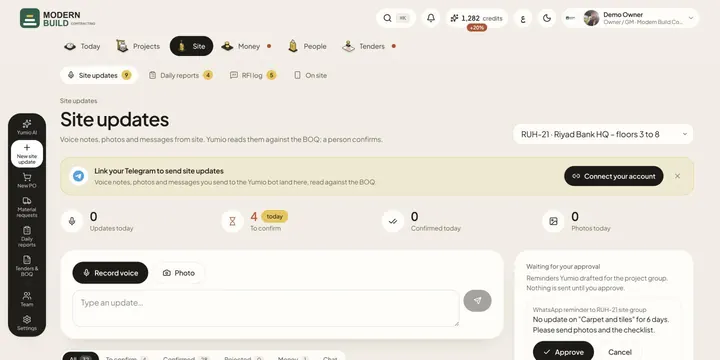 Site updatesSend what happened on site as a voice note, a photo or a typed message. Yumio reads it against the BOQ and a person confirms it.
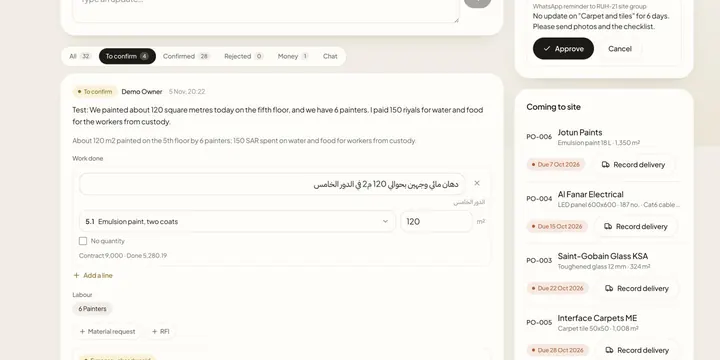 Confirm a site updateCheck what Yumio read from a site update, correct the BOQ lines and quantities, then confirm it so it counts in progress, or reject it.
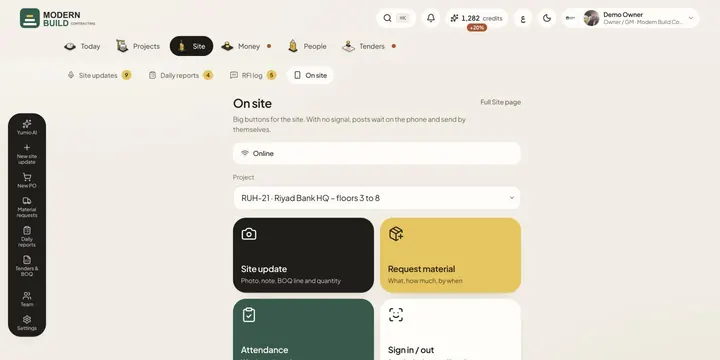 On siteA phone screen with big buttons for site updates, material requests, attendance, worker sign-in and RFIs, which keeps working with no signal.
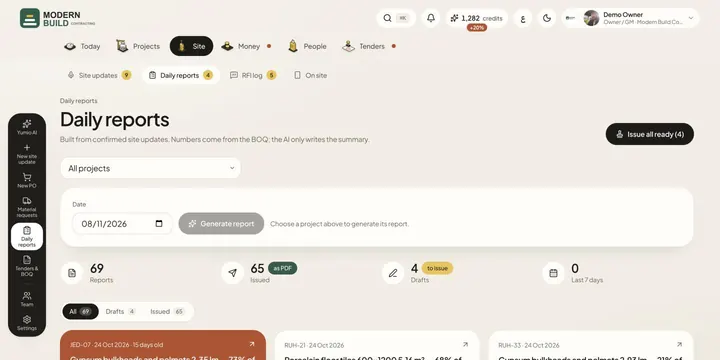 Daily reportsBuild the daily progress report from confirmed site updates, check it, issue it, and print it or send it as a PDF.
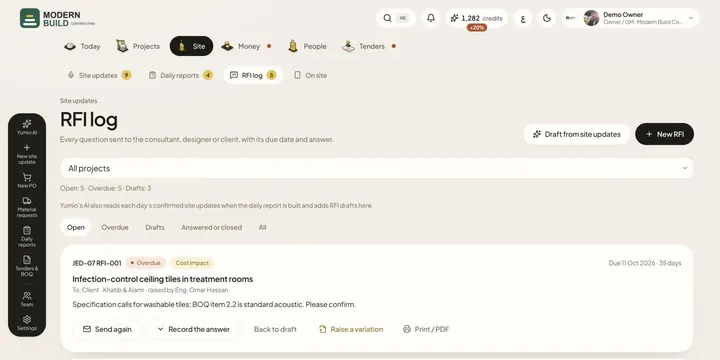 RFI logKeep every question to the consultant, designer or client in one log, with its due date, how long it has waited and the answer.
- Inspection requestsRaise work (WIR) and material (MIR) inspection requests, send them to the consultant, and record the A, B or C result in one tap.
Money
5 guidesOwner IPCs, collections, petty cash and exports.
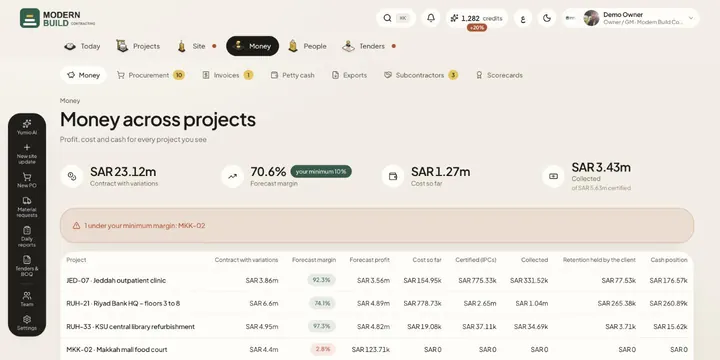 Money across projectsSee contract value, forecast margin, cost, certified and collected money, retention and cash for every project in one table.
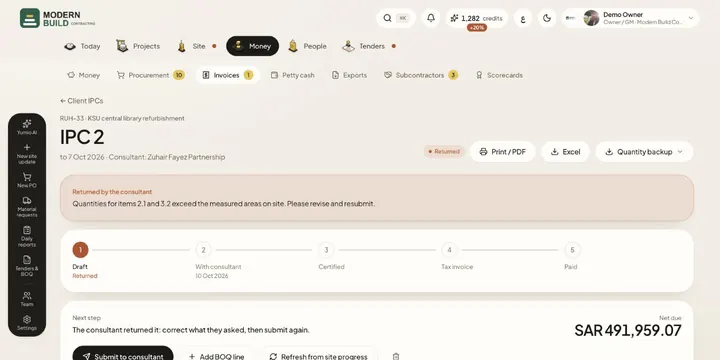 Client IPCsPrepare an interim payment certificate from approved site progress, send it to the consultant and follow it to the tax invoice and payment.
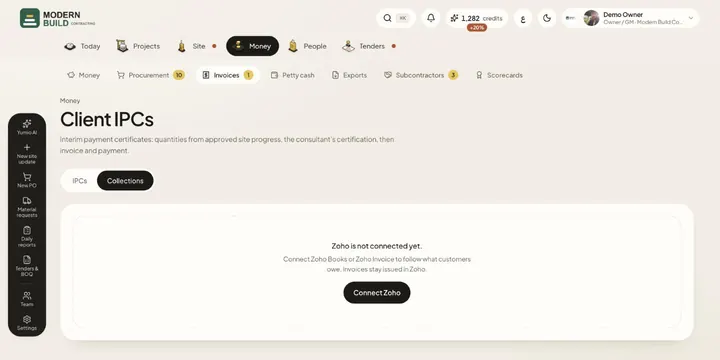 CollectionsFollow what each customer owes, aged by days overdue, read from your Zoho Books or Zoho Invoice account.
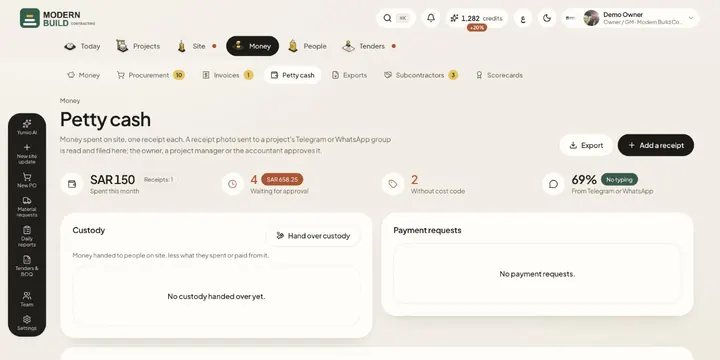 Petty cashRecord site spending one receipt at a time, from the app or from a photo in the project's chat, then approve, code and export it.
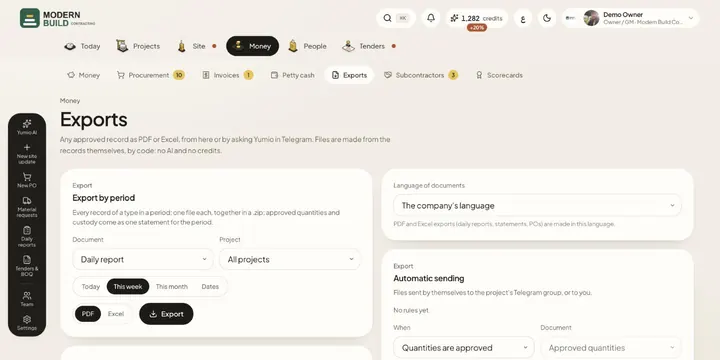 ExportsDownload any approved record as PDF or Excel, a whole period at once, and set files to be sent to Telegram on their own.
Procurement
4 guidesMaterial requests, purchase orders and suppliers.
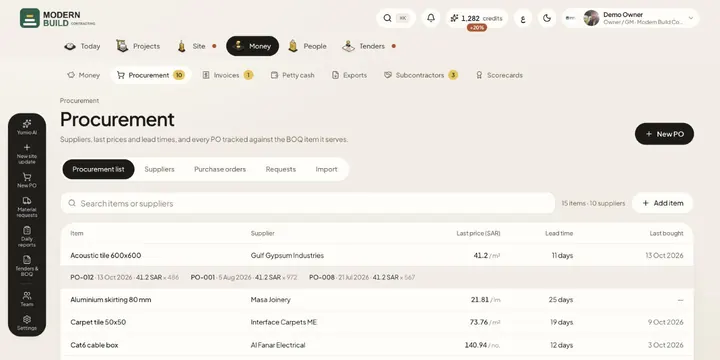 Procurement listEvery item you buy, from whom, the last price, lead time and when you last bought it, with its price history.
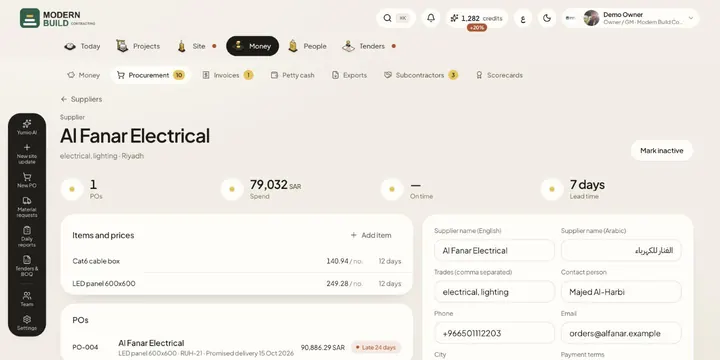 SuppliersKeep each supplier's details, prices and POs in one place, with their spend, on-time record and grade.
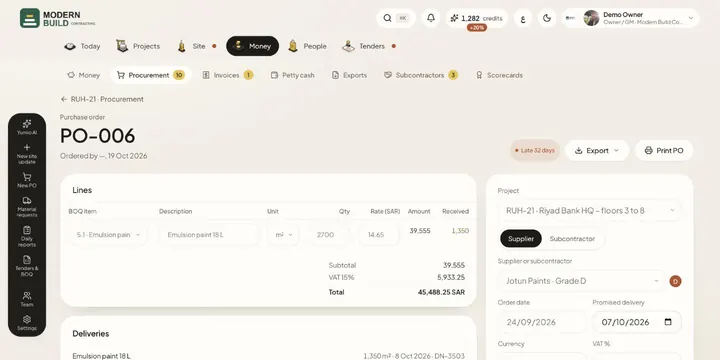 Purchase ordersRaise a PO against BOQ items, get it approved, then track it to delivery: in transit, partly delivered, late or closed.
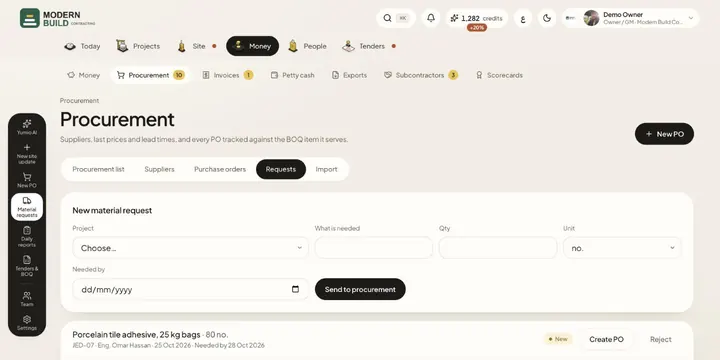 Material requestsAsk procurement for materials from site, and turn each request into a PO or reject it.
Subcontractors
4 guidesSubcontracts, their claims and how each one performs.
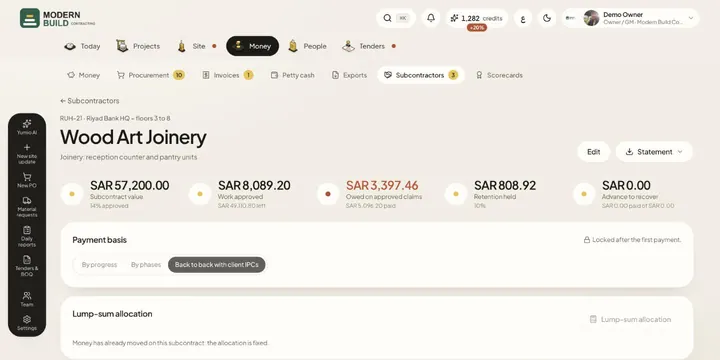 SubcontractsSet up each subcontract as lines of the project's BOQ, then follow its claims, payments, retention and advance.
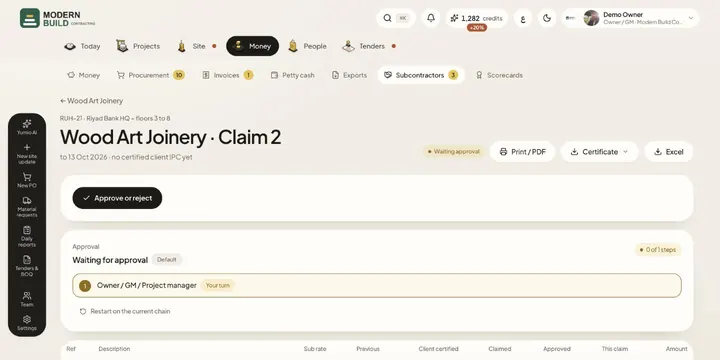 Subcontractor claimsCheck a subcontractor's claim against what the consultant certified for you, approve it and follow its payment.
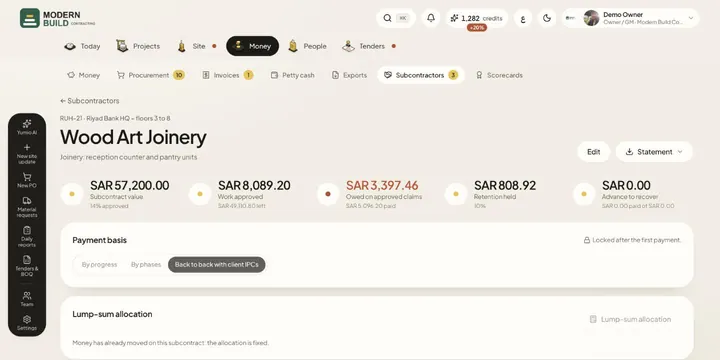 Lump-sum subcontractsSpread an agreed lump sum over the BOQ items you give a subcontractor, and choose whether you pay by progress, by phases or back to back.
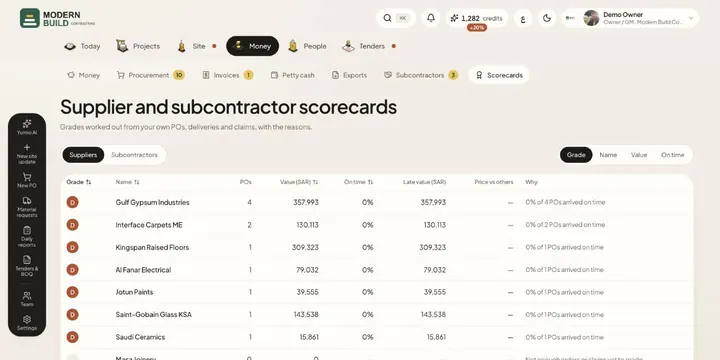 ScorecardsGrade every supplier and subcontractor from A to D from your own POs, deliveries and claims, with the reasons.
People
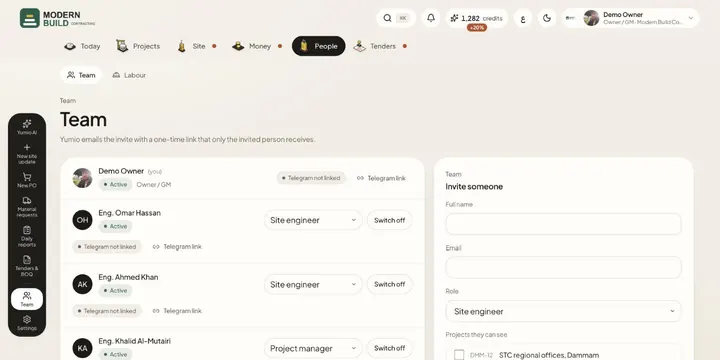
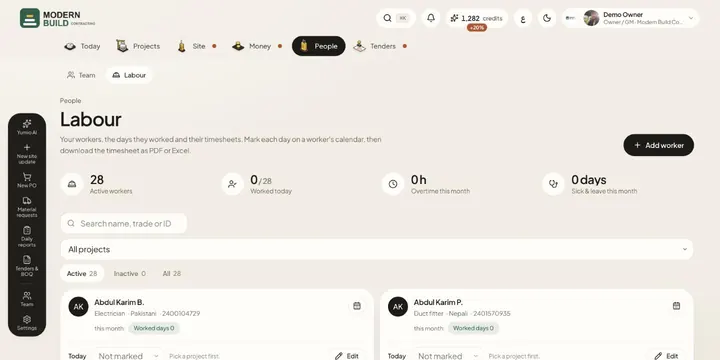
2 guidesYour team's accounts and roles, and site labour.
Tenders
9 guidesFrom the tender documents to a priced BOQ, plus your rate library and RFQ inbox.
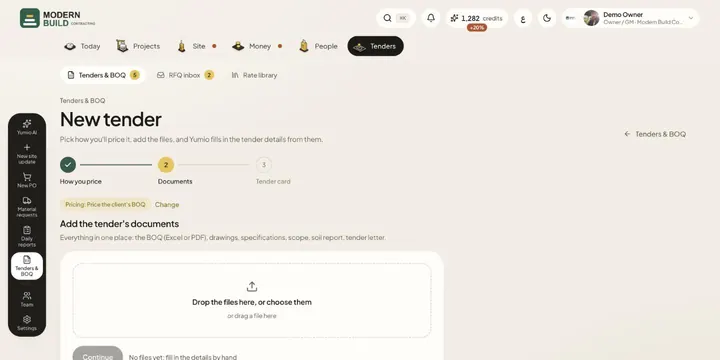 New tenderStart a tender from its documents: pick how you'll price it, add the files or import an RFQ email, and Yumio fills in the details.
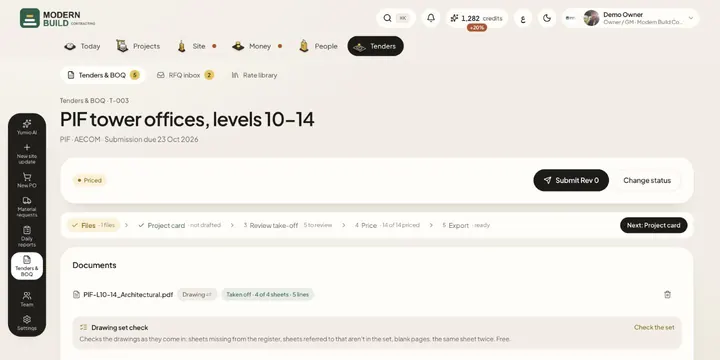 Tender filesAdd and remove a tender's documents, choose how each file is read, and write the scope of work the take-off and pricing follow.
- Tender cardCheck the name, client, dates and terms Yumio read from the tender documents, type only what's missing, and confirm in one tap.
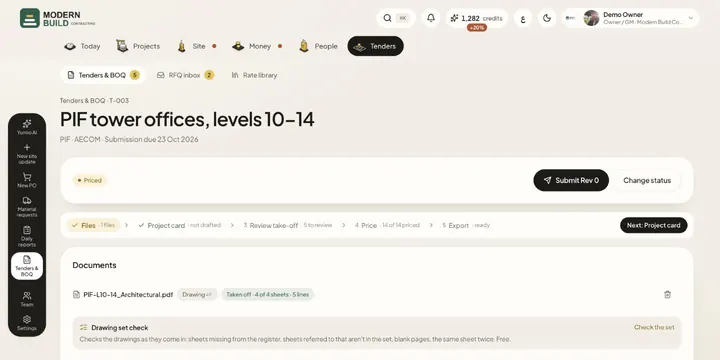 Whole-tender take-offLet the AI read all the tender's drawings and specifications together, follow each file's progress, and get draft BOQ lines to review.
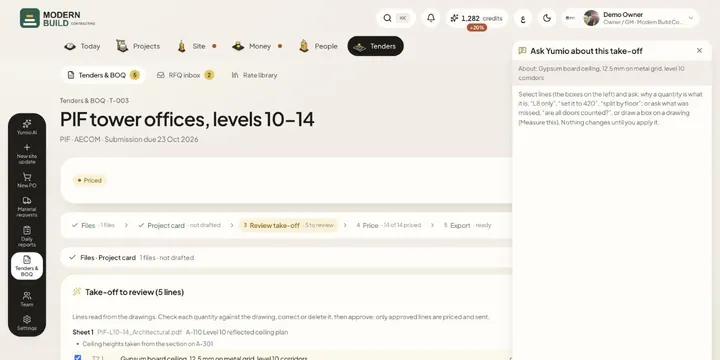 Ask Yumio about the take-offCheck the take-off's draft lines, ask Yumio why a quantity is what it is or what was missed, apply its corrections, and approve.
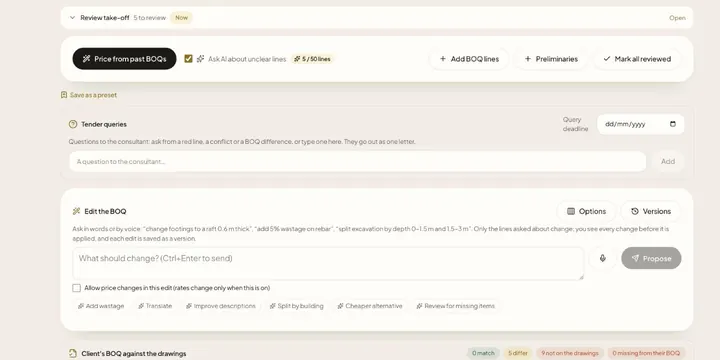 Pricing a tenderPrice every BOQ line from your rate library, see where each rate came from, pick another past rate or type your own, and mark lines checked.
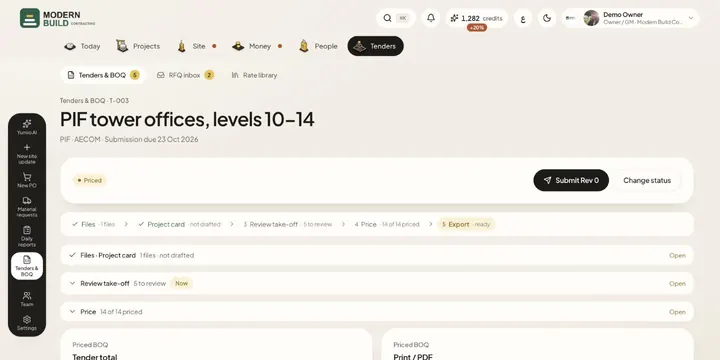 Export and submit a tenderSet the quotation terms and markup, check the total and margin, download Excel or print the priced BOQ, and submit it as a revision.
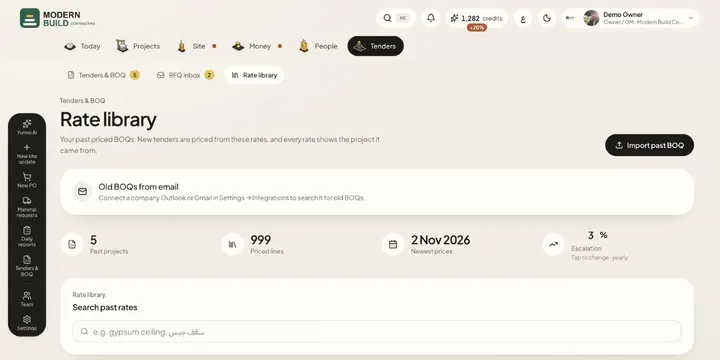 Rate libraryKeep your past priced BOQs and price books in one library, search their rates, and set the yearly escalation tenders are priced with.
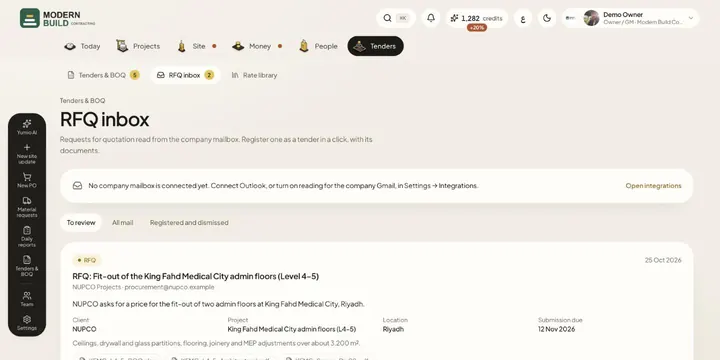 RFQ inboxSee the requests for quotation read from the company mailbox, register one as a tender with its documents, or dismiss it.
Settings
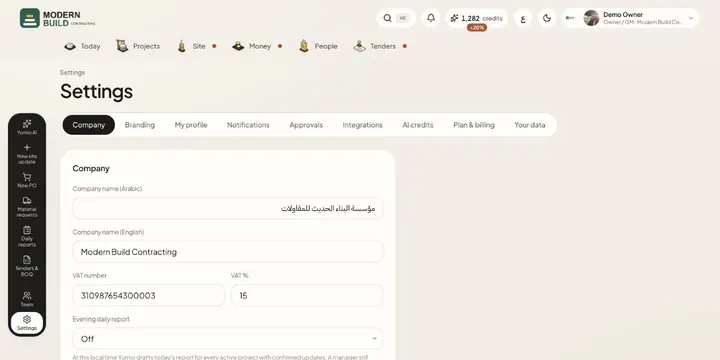
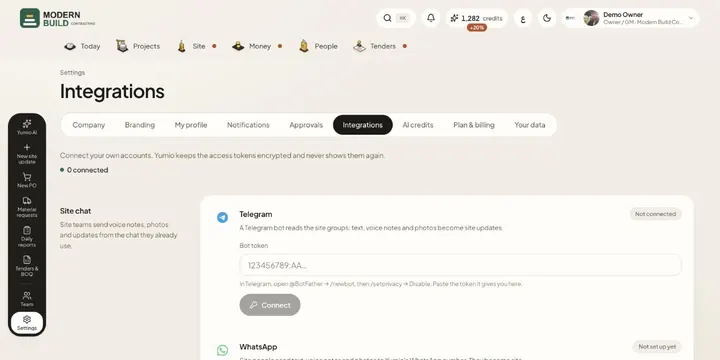
2 guidesCompany settings, approvals, AI keys, Telegram and WhatsApp.
Still stuck?
Write to us in Arabic or English and we will help.