Procurement
Purchase orders
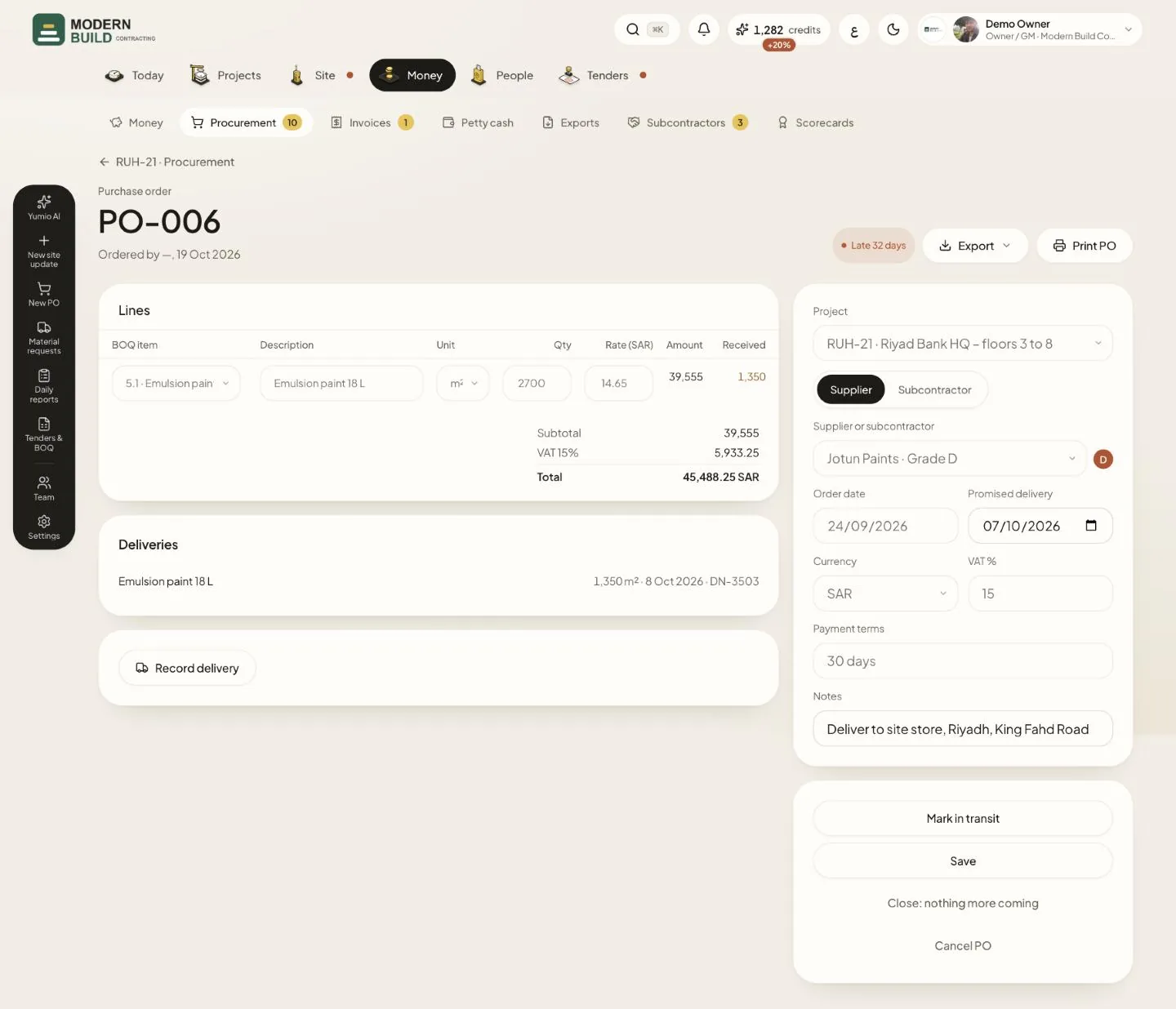
The Purchase orders tab tracks every PO across projects, late ones first. A PO's page holds its lines, each tied to the BOQ item it serves, and its deliveries. The owner, project managers, QS and procurement raise and follow POs. The picture shows an ordered PO.
Step by step
- 1To raise one, press New PO, pick the project and the supplier, and add lines with Add line, each against a BOQ item. Press Save draft, then Mark as ordered, or Send for approval when your company's approval steps ask for it.
- 2Check the Lines: the BOQ item, quantity, rate and what has been Received so far.
- 3When the goods arrive, press Record delivery and enter what came, with the delivery note number.
- 4Press Mark in transit when the supplier ships, and change Promised delivery if the date moves.
- 5Press Close: nothing more coming when the rest will not be delivered, or Cancel PO to cancel it.
- 6Press Print PO, or Export for PDF, Excel or Send by email.
What you see on the screen
- 7The status badge reads Draft, Ordered, In transit, Partly delivered, Closed or Cancelled. It turns red and says Late with the days when the promised date has passed.
- 8Received is the quantity delivered on each line so far.
More in this section: Procurement
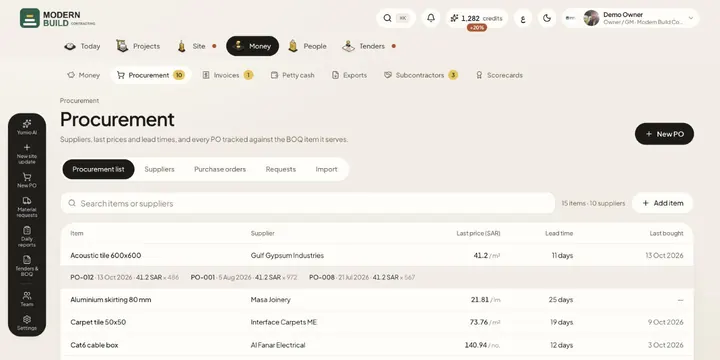 Procurement listEvery item you buy, from whom, the last price, lead time and when you last bought it, with its price history.
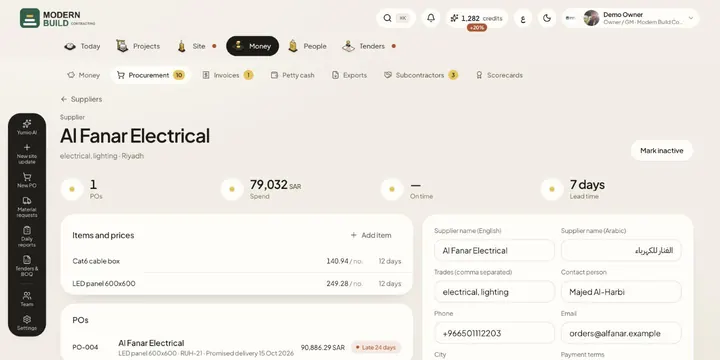 SuppliersKeep each supplier's details, prices and POs in one place, with their spend, on-time record and grade.
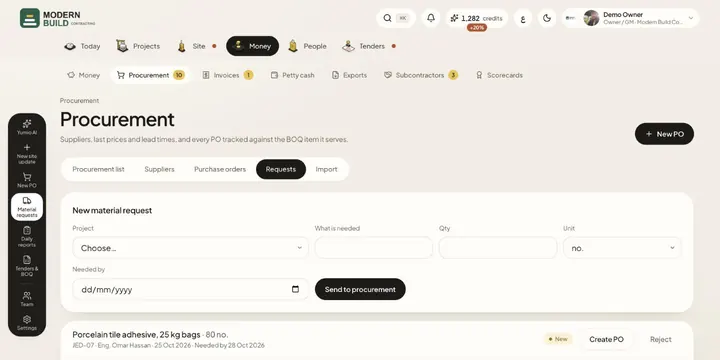 Material requestsAsk procurement for materials from site, and turn each request into a PO or reject it.
Still stuck?
Write to us in Arabic or English and we will help.