Subcontractors
Subcontractor claims
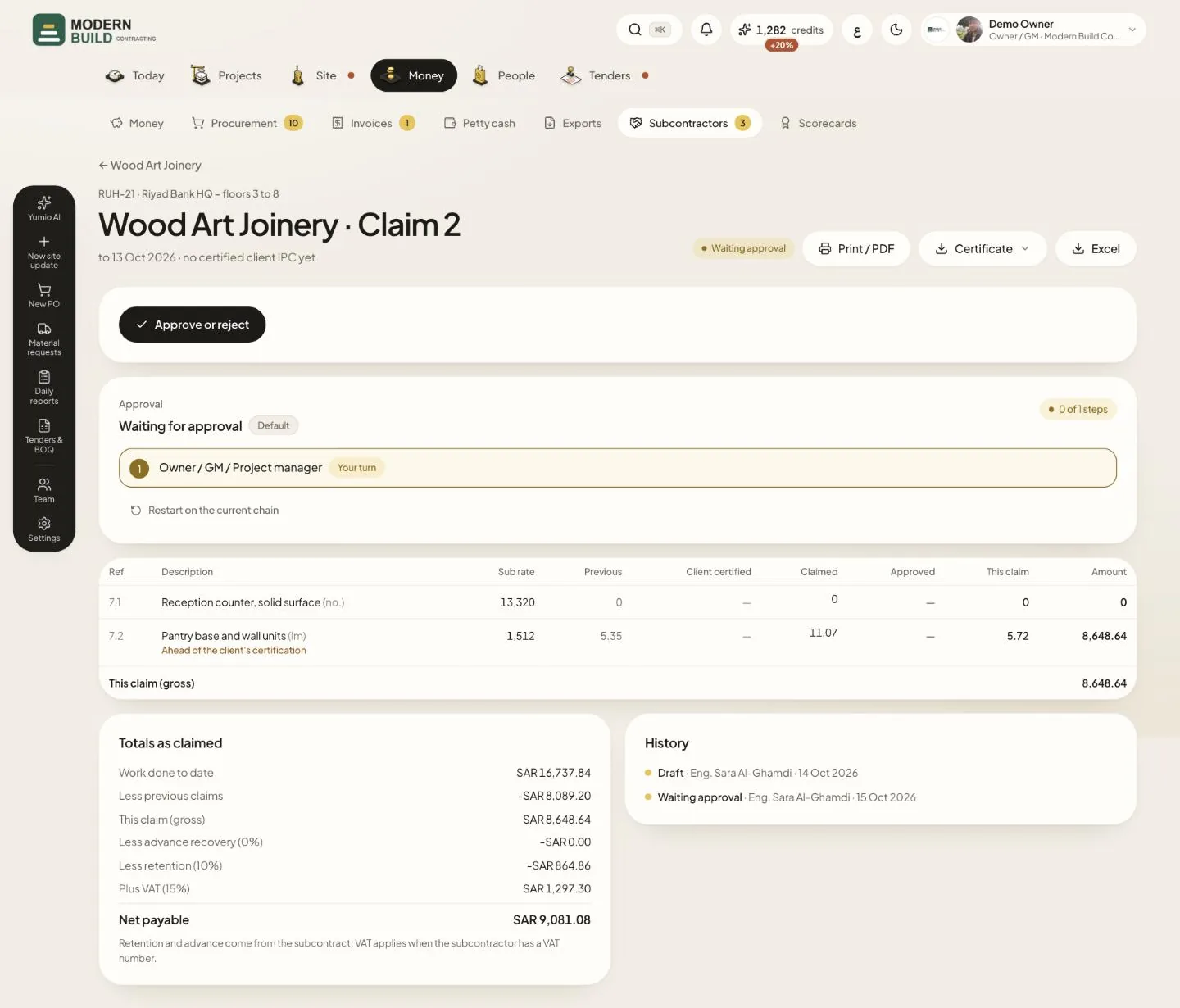
A claim is the subcontractor's interim certificate. Quantities are to date, and each line shows what the consultant certified for the same BOQ line, so you never pay ahead of your client without seeing it. The owner, project managers and QS prepare claims; the approval steps decide who approves.
Step by step
- 1On the subcontract's page, press New claim, set the period end and, if there is one, the client IPC it goes back to back with.
- 2Compare Claimed with Client certified. A line marked Ahead of the client's certification claims more than the consultant certified for you.
- 3While it is a draft, type the quantities in Claimed and press Submit for approval.
- 4When it is your turn, press Approve or reject, enter what you approve to date, then press Approve, or Reject with a note.
- 5Press Certificate for the certificate as PDF or Excel or to email it, or Print / PDF for the printed claim.
What you see on the screen
- 6The status badge reads Draft, Waiting approval, Approved, Paid or Rejected.
- 7Net payable is the work to date, less previous claims, advance recovery and retention, plus VAT when the subcontractor has a VAT number.
- 8History lists every move with who made it and when, and the payments made against the claim.
More in this section: Subcontractors
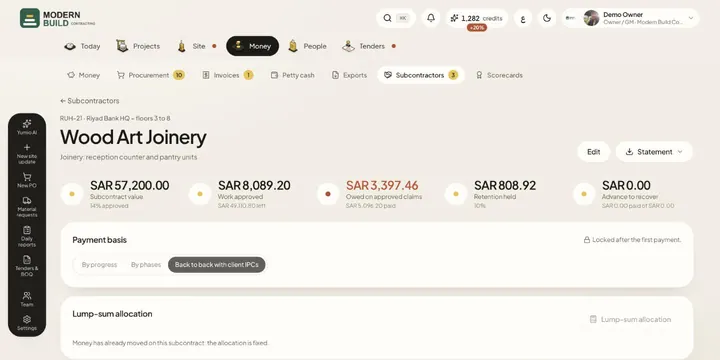 SubcontractsSet up each subcontract as lines of the project's BOQ, then follow its claims, payments, retention and advance.
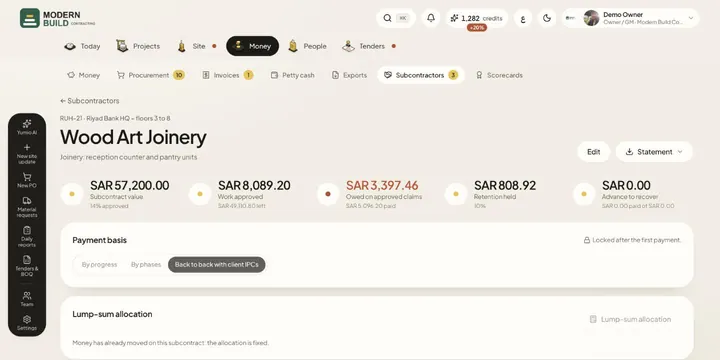 Lump-sum subcontractsSpread an agreed lump sum over the BOQ items you give a subcontractor, and choose whether you pay by progress, by phases or back to back.
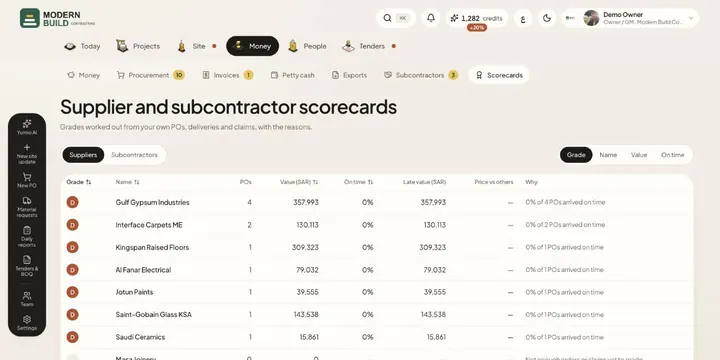 ScorecardsGrade every supplier and subcontractor from A to D from your own POs, deliveries and claims, with the reasons.
Still stuck?
Write to us in Arabic or English and we will help.