Subcontractors
Lump-sum subcontracts
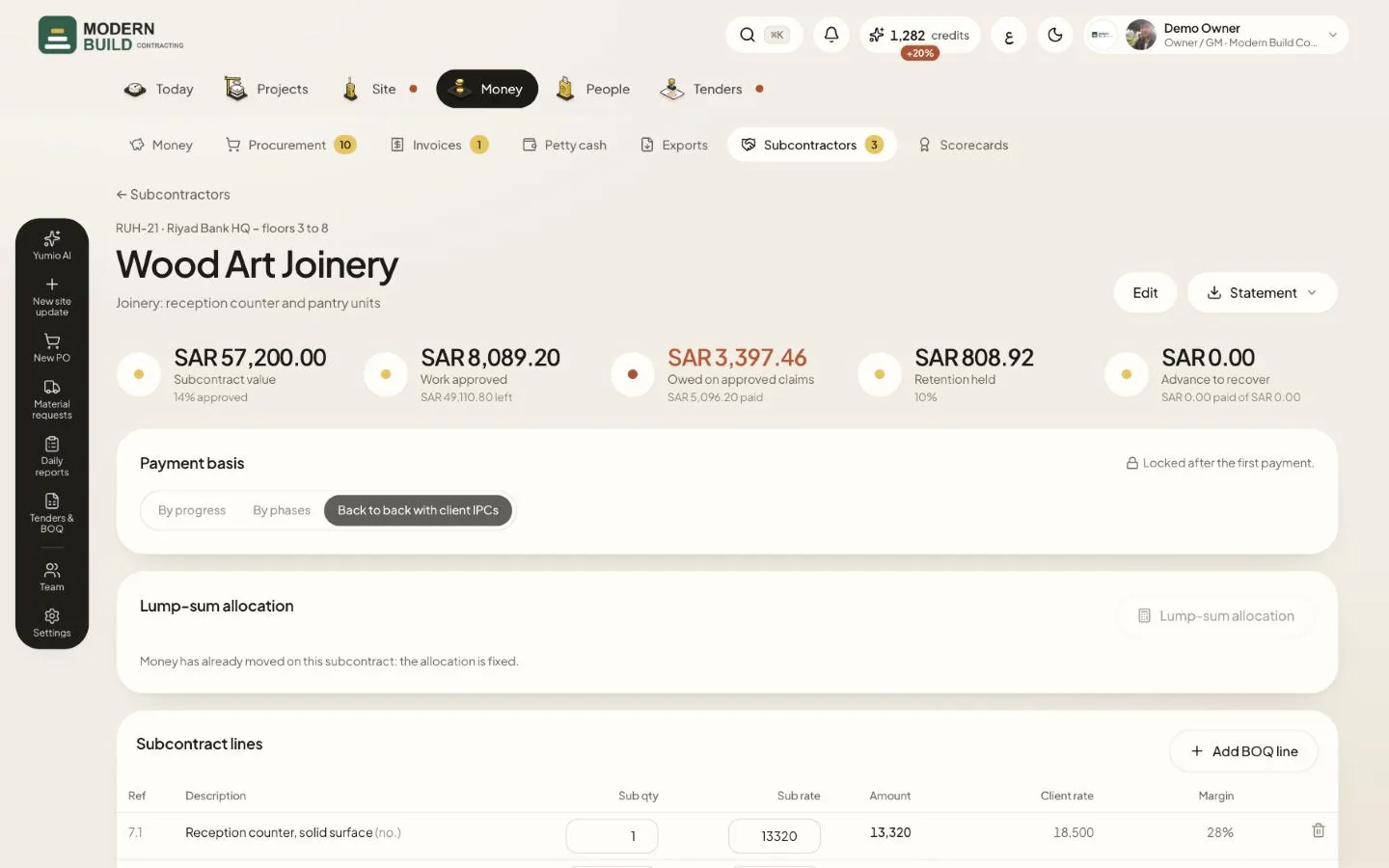
When you agree one price for a package of work, Yumio spreads it over the BOQ items in proportion to your own values, so every claim still runs line by line. These cards sit on the subcontract's page, above the lines.
Step by step
- 1Open the subcontract and find Payment basis.
- 2Choose By progress (confirmed site quantities × sub rates), By phases, or Back to back with client IPCs.
- 3With By phases, press Propose phases, adjust the percentages until the total is 100%, and press Approve phase as each one is reached.
- 4Press Lump-sum allocation, enter the Agreed lump sum and tick the Items given to the subcontractor.
- 5Check Sub rate, Sub value and Margin for each item, use Fix the rate where a rate is agreed, then press Save allocation.
What you see on the screen
- 6Locked after the first payment. Once money has moved on the subcontract, the basis and the allocation stay as they are.
- 7A red Cash warning appears when you have paid the subcontractor a larger share of an item than the client has paid you.
More in this section: Subcontractors
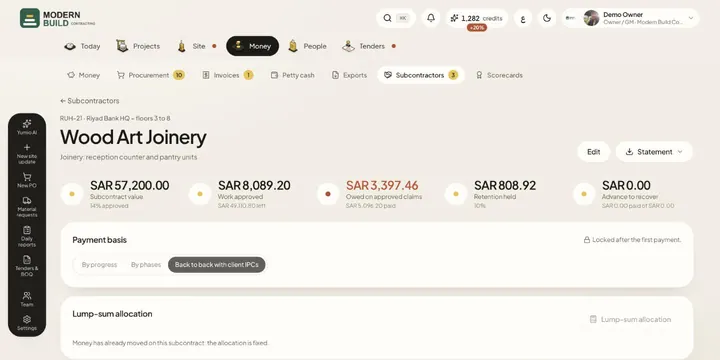 SubcontractsSet up each subcontract as lines of the project's BOQ, then follow its claims, payments, retention and advance.
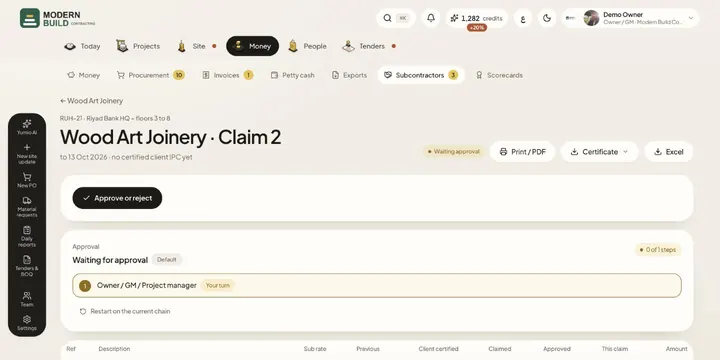 Subcontractor claimsCheck a subcontractor's claim against what the consultant certified for you, approve it and follow its payment.
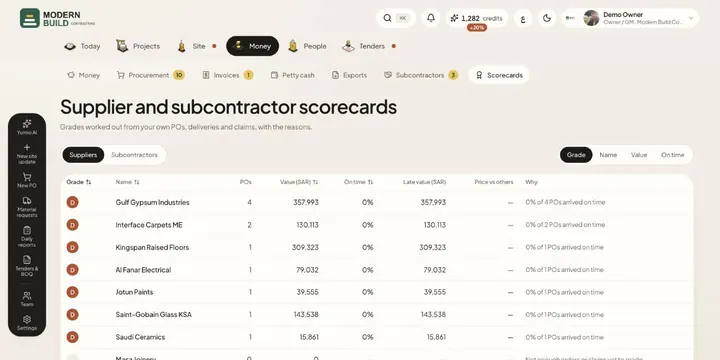 ScorecardsGrade every supplier and subcontractor from A to D from your own POs, deliveries and claims, with the reasons.
Still stuck?
Write to us in Arabic or English and we will help.