Subcontractors
Subcontracts
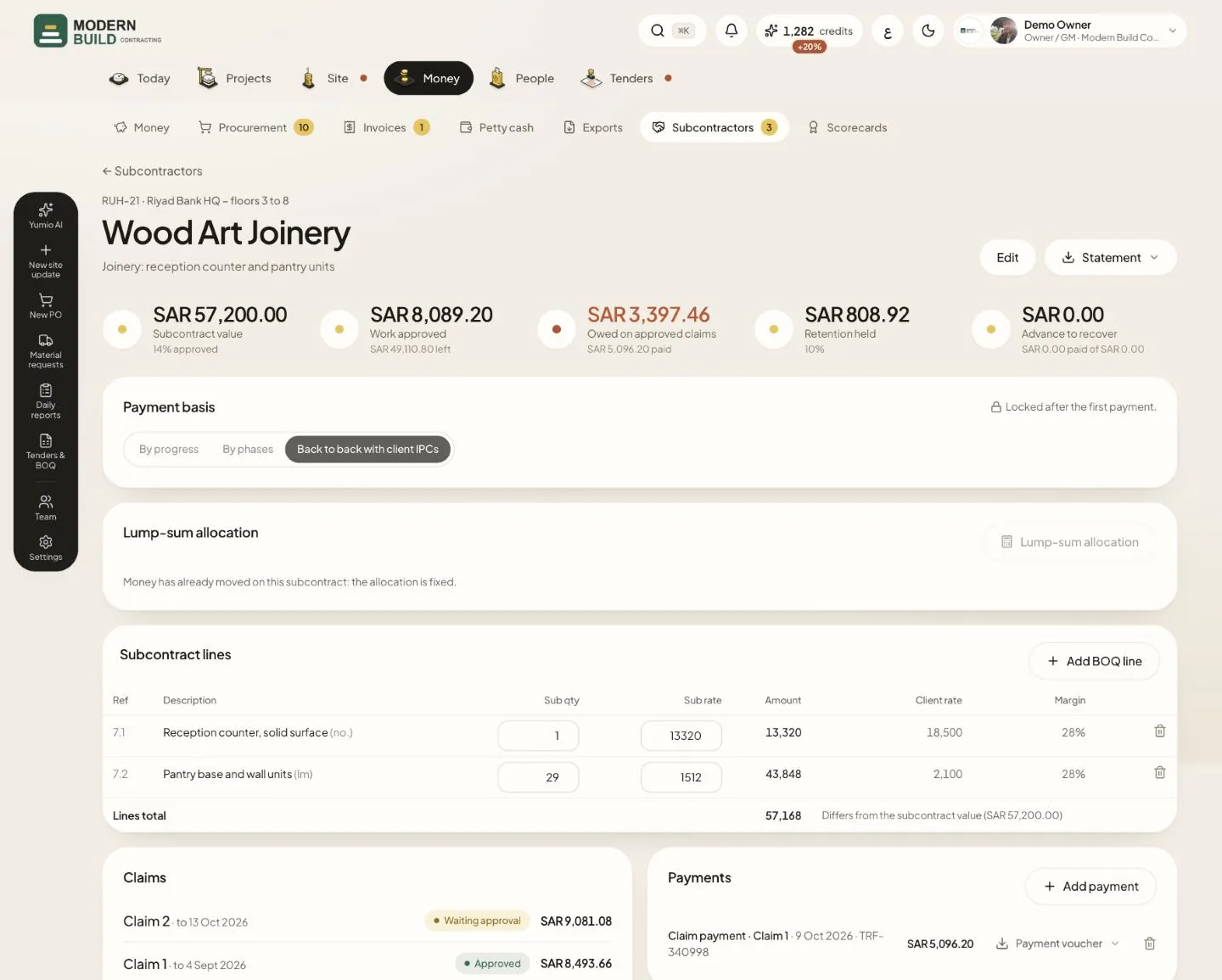
Subcontractors lists every subcontract as a card; a subcontract's page is its account: the lines with your margin, the claims and the payments. It is for the owner, project managers, QS and accountants. The picture shows one subcontract on RUH-21.
Step by step
- 1Open Subcontractors in the Money tab. Add the company under Directory with New subcontractor, then press New subcontract on the Subcontracts tab.
- 2Under Subcontract lines, press Add BOQ line for each BOQ item the subcontractor does, with the sub quantity and rate.
- 3Compare Sub rate with Client rate: the Margin column shows what you keep on each line.
- 4Under Claims, press New claim to start the next claim, or press a claim to open it.
- 5Under Payments, press Add payment to record money paid. A payment filed from the chat waits as To confirm until you press Confirm.
- 6Press Statement for the subcontractor's statement as PDF or Excel, or to send it by email.
What you see on the screen
- 7Work approved adds the approved claims; the line below gives what is left of the subcontract.
- 8Owed on approved claims is the net of approved claims not yet paid; it shows in red while money is owed.
- 9Retention held and Advance to recover show what you keep back and what the subcontractor still has to repay.
More in this section: Subcontractors
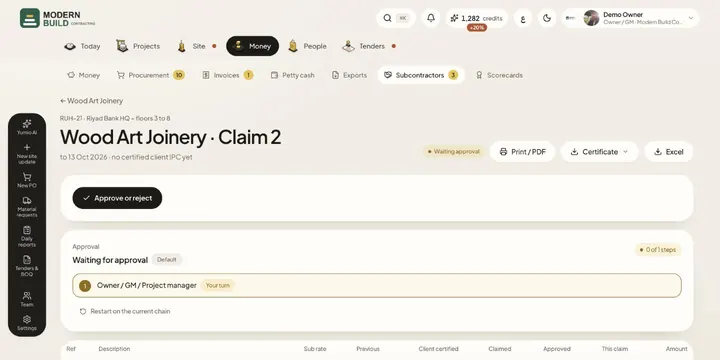 Subcontractor claimsCheck a subcontractor's claim against what the consultant certified for you, approve it and follow its payment.
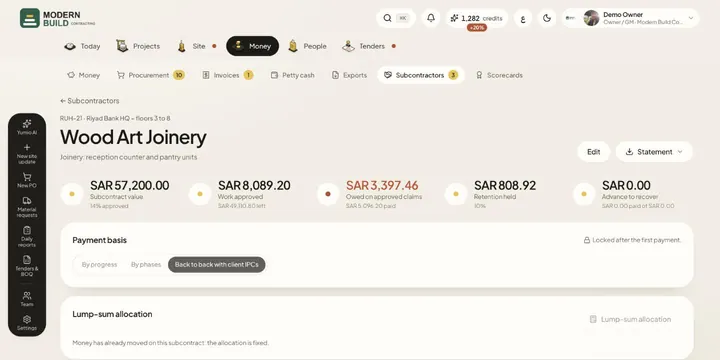 Lump-sum subcontractsSpread an agreed lump sum over the BOQ items you give a subcontractor, and choose whether you pay by progress, by phases or back to back.
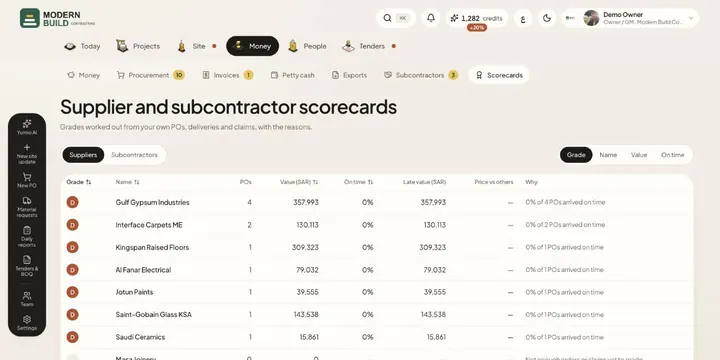 ScorecardsGrade every supplier and subcontractor from A to D from your own POs, deliveries and claims, with the reasons.
Still stuck?
Write to us in Arabic or English and we will help.