Getting started
Getting started
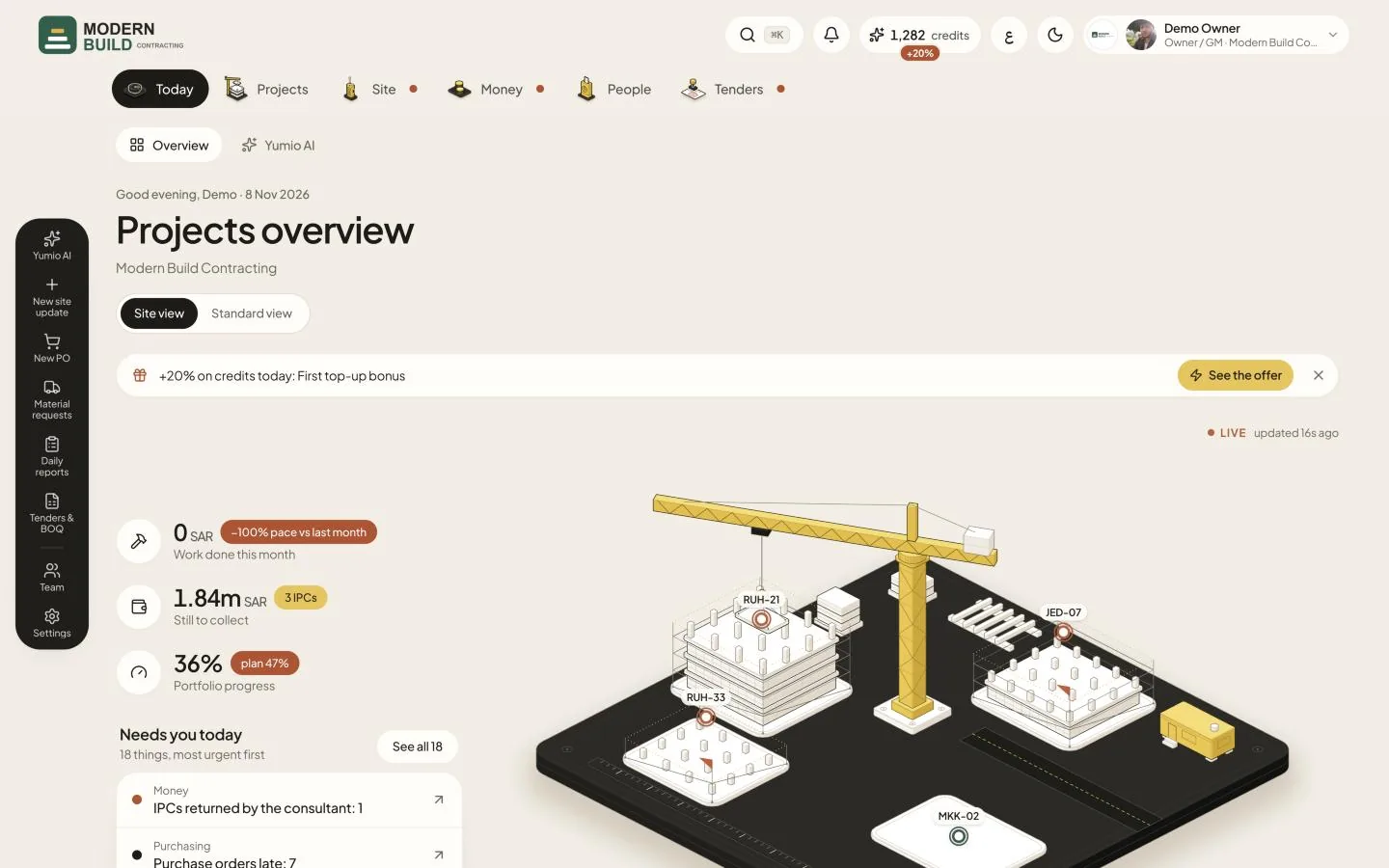
Open Yumio and sign in with your Email and Password, then press Sign in. You land on Today. Everything you see after that follows your role in the company: an owner sees money and approvals, a foreman sees the site.
Step by step
- 1Use the tabs Today, Projects, Site, Money, People and Tenders to move between parts of the app. Each tab opens its own row of pages under the top bar, for example Site updates, Daily reports and RFI log under Site.
- 2On a computer, the dark rail at the side holds the quick actions: Yumio AI, New site update, New PO, Material requests, Daily reports, Tenders & BOQ, and below them Team and Settings. Point at the rail to see the names.
- 3Press the search button, or Ctrl K (⌘K on a Mac), to search projects, POs, RFIs, people and pages from one box. Use ↑ ↓ to move, Enter to open and Esc to close.
- 4Press the bell to read your Notifications: approvals waiting on you, RFIs falling due and other news about your work.
- 5Press ع to switch the app to Arabic (and EN to switch back). The button beside it changes between the light and dark theme.
- 6Open the account menu (your name) for Settings, Getting started, Take the tour, Explore demo dashboard and Sign out. If you work for more than one company, pick the company here.
What you see on the screen
- 7Under your name you see your role and the company, for example Project manager · Modern Build Contracting.
- 8A small dot beside a tab means something on one of its pages needs someone. The page itself shows the count in a yellow badge.
Still stuck?
Write to us in Arabic or English and we will help.