Today
Yumio AI
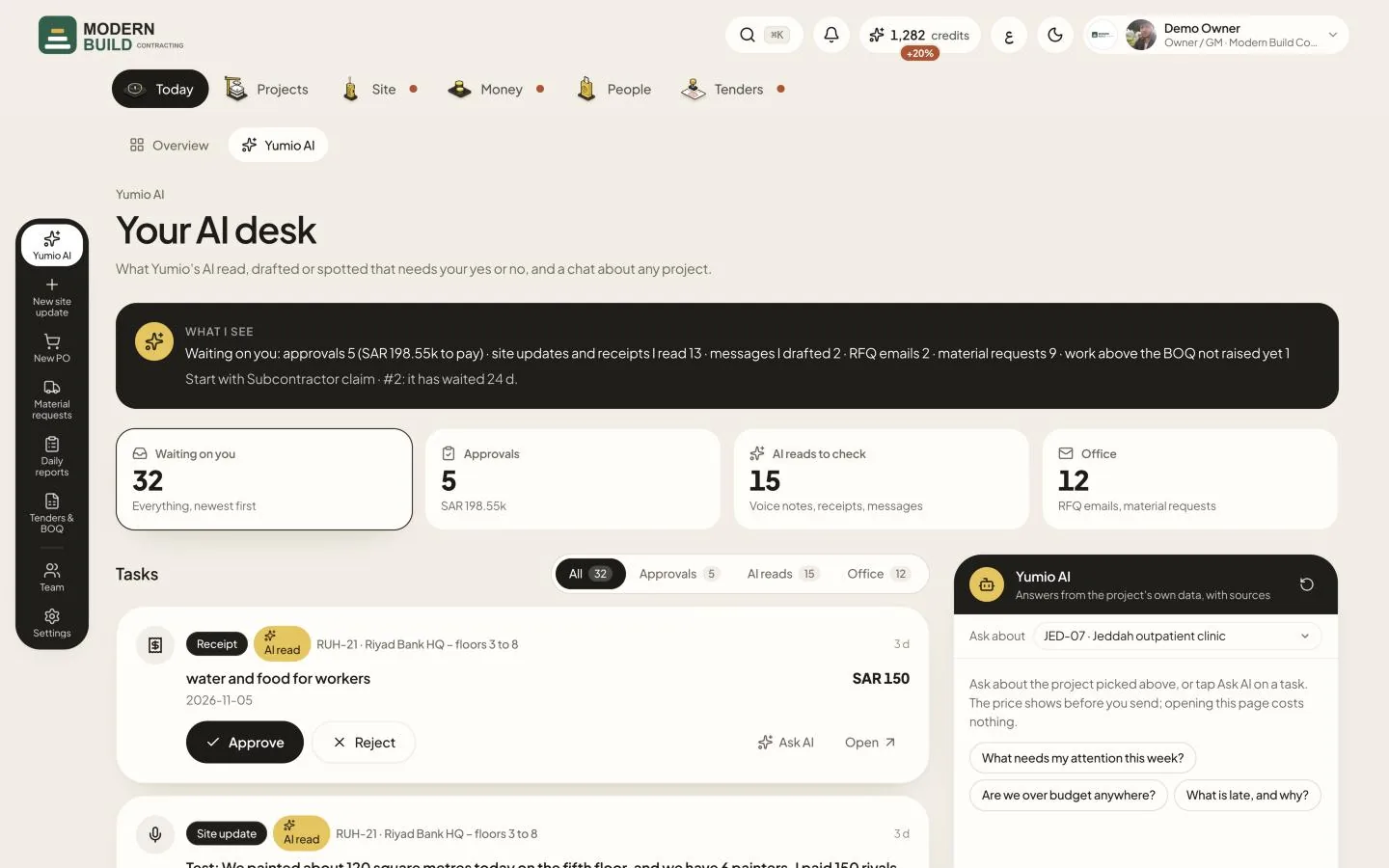
Your AI desk puts in one place what the AI has read or drafted and is waiting for your yes or no: purchase orders and claims to approve, voice notes and receipts it read, RFQ emails and material requests. Beside the tasks is a chat with Yumio AI about a project.
Step by step
- 1Read What I see at the top: the AI's short summary of what is waiting, what it is worth and where to start.
- 2Narrow the tasks with the cards (Waiting on you, Approvals, AI reads to check, Office) or the switch All, Approvals, AI reads, Office.
- 3On a task, read what the AI found, then press its yes button (Approve, Confirm as read, Register as tender…) or Reject. Some rejections ask for a short note first. Open takes you to the record itself.
- 4Press Ask AI on a task to ask the chat about it: the chat switches to that task's project.
- 5In the chat, pick the project in Ask about, then type a question or tap a suggestion such as What needs my attention this week? Answers come from the project's own data, with their sources.
What you see on the screen
- 6Each card's number is how many tasks are in that group. Under Approvals you see the total of the POs and claims waiting, in your company's currency.
- 7The yellow AI read badge on a task means the AI read it from a voice note, photo, receipt or email: check it before you approve.
More in this section: Today
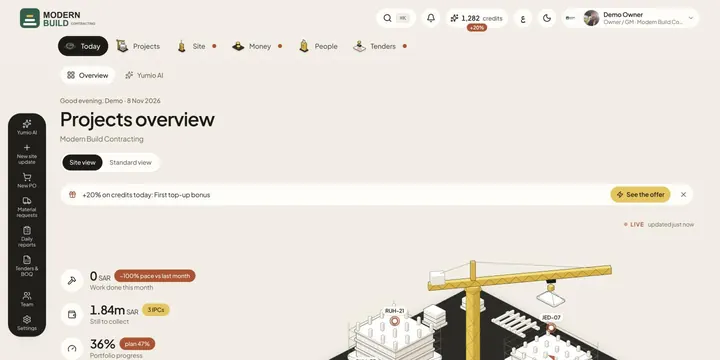 TodayThe Today page shows your company's day at a glance: headline figures, what needs you, and every project in a site view or a standard view.
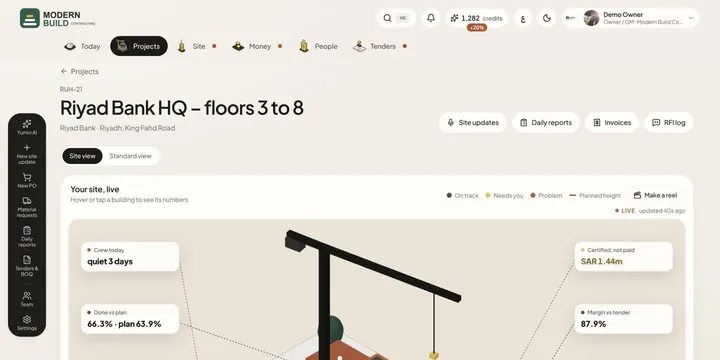 Site viewSee a project, or all your projects, as a live 3D site: buildings rise with the work done and their colour says what needs a look.
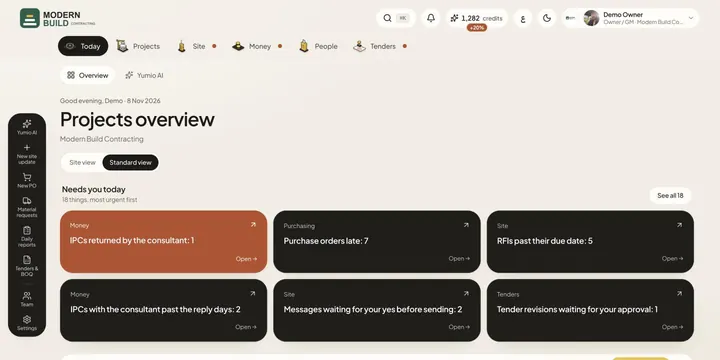 Needs you todayOne list of everything waiting on you across the company, most urgent first, each a tap away from the page where you deal with it.
Still stuck?
Write to us in Arabic or English and we will help.