Site
RFI log
The RFI log numbers each request for information per project (RFI-001…). RFIs are raised here or from a site update. The owner, project manager, QS and site engineer raise and answer them.
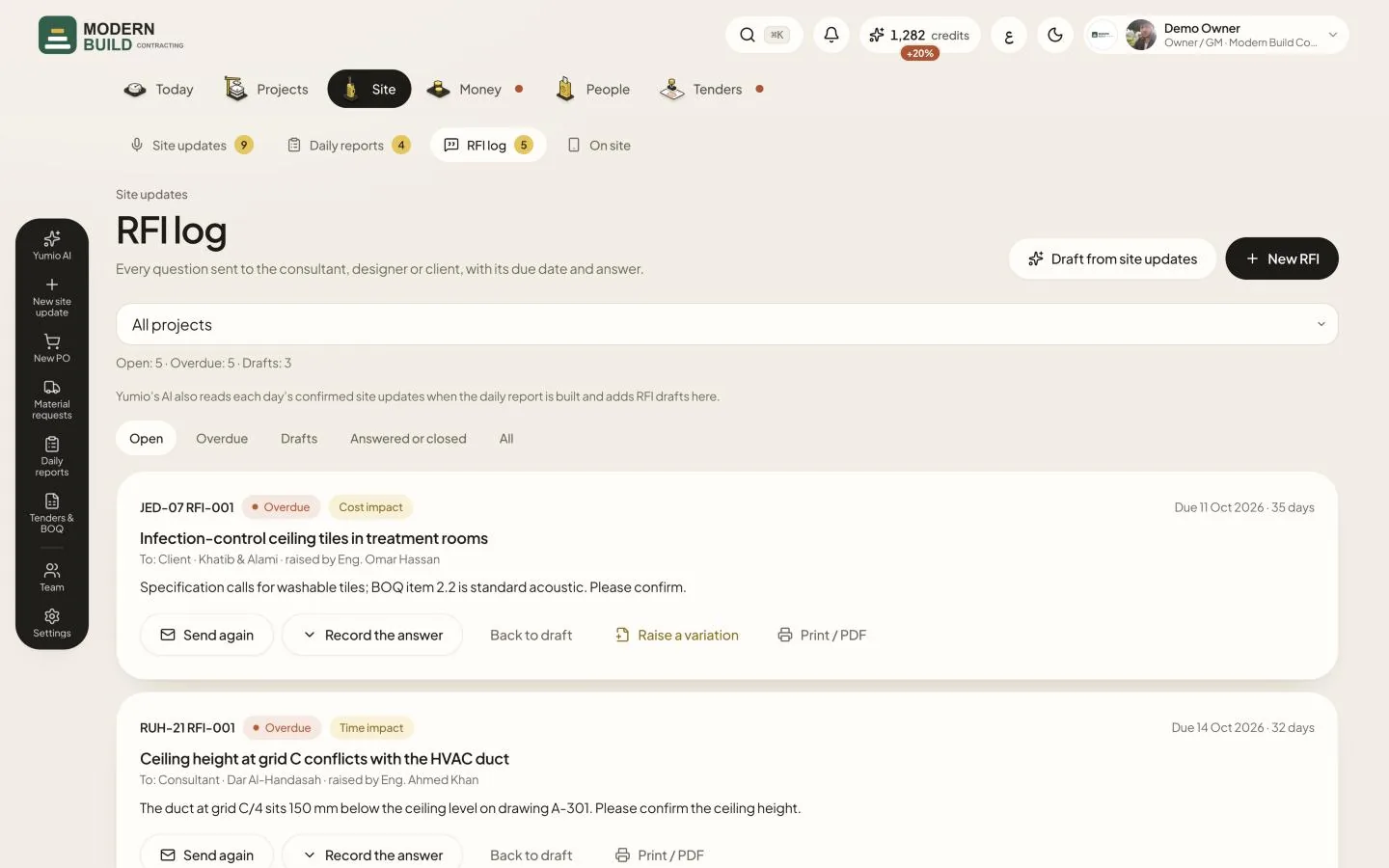
Step by step
- 1Press New RFI, fill in the subject, the question, who it is to and the due date, then press Save and mark sent or Save as draft.
- 2Press Draft from site updates to let the AI read the project's confirmed site updates and add RFI drafts for you to check.
- 3Use the filters Open, Overdue, Drafts, Answered or closed and All, and the project list, to find an RFI.
- 4When the answer comes, press Record the answer, write the Answer and its Impact, and save. Then Close it when it is settled.
- 5Press Print / PDF on an RFI for its RFI sheet, ready to send or file.
What you see on the screen
- 6The badge on each RFI: Open, Due soon (two days or less left), Overdue (past its due date), Answered, Closed or Draft. Beside it, the due date and the days it has waited since it was sent.
- 7The line beside the project list counts Open, Overdue and Drafts for the project shown.
More in this section: Site
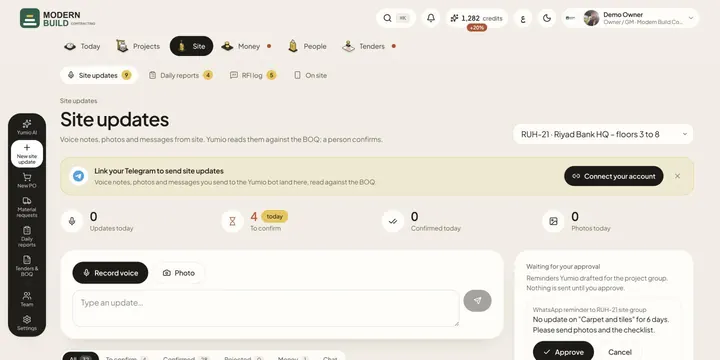 Site updatesSend what happened on site as a voice note, a photo or a typed message. Yumio reads it against the BOQ and a person confirms it.
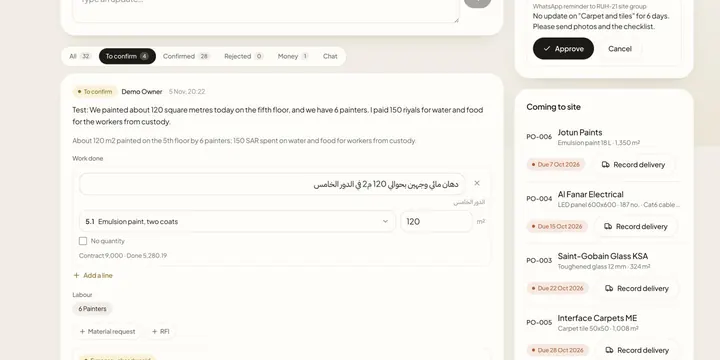 Confirm a site updateCheck what Yumio read from a site update, correct the BOQ lines and quantities, then confirm it so it counts in progress, or reject it.
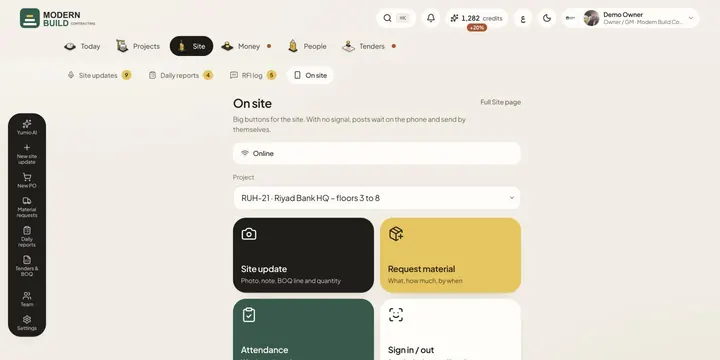 On siteA phone screen with big buttons for site updates, material requests, attendance, worker sign-in and RFIs, which keeps working with no signal.
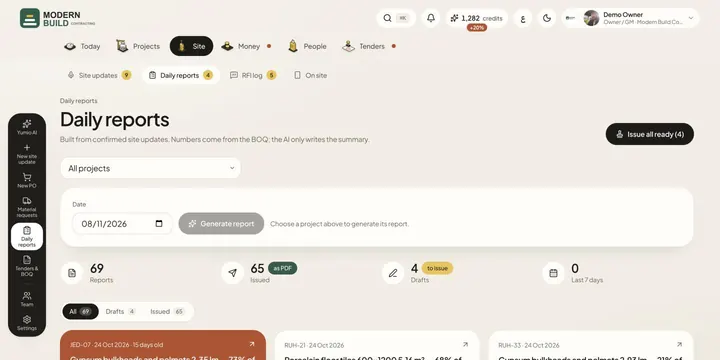 Daily reportsBuild the daily progress report from confirmed site updates, check it, issue it, and print it or send it as a PDF.
- Inspection requestsRaise work (WIR) and material (MIR) inspection requests, send them to the consultant, and record the A, B or C result in one tap.
Still stuck?
Write to us in Arabic or English and we will help.