Site
Site updates
Site updates is where site engineers and foremen report the day's work, and where the office sees it. Messages sent to the project's Telegram or WhatsApp group land here too.
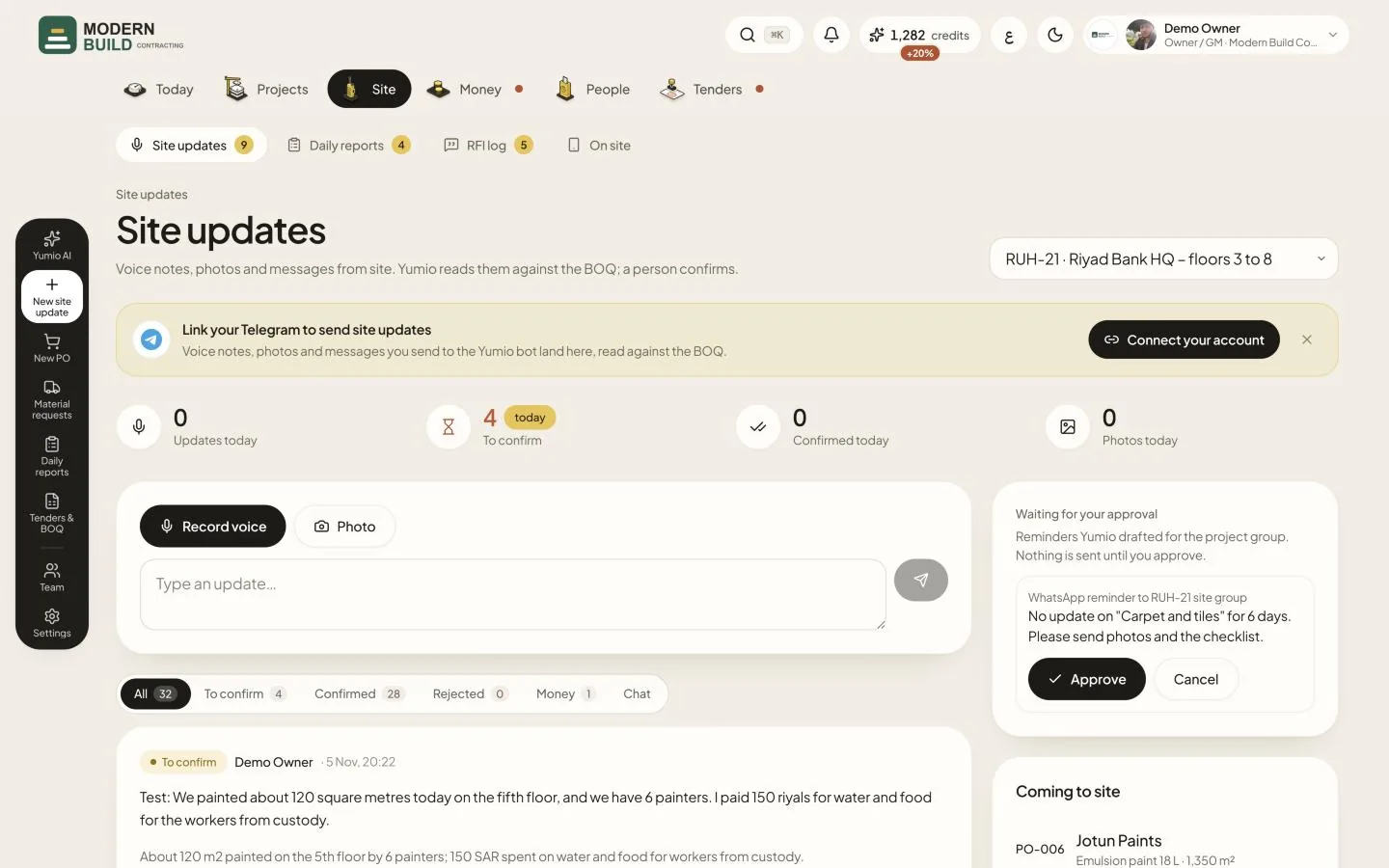
Step by step
- 1Pick the project at the top of the page. Yumio remembers it for next time.
- 2Press Record voice and say what was done, by whom and where. Press Stop and send when you finish.
- 3Press Photo to take or choose a site photo. You can also drop a photo onto the box.
- 4Or write it in Type an update… and press the send button beside it.
- 5Follow your update in the list below: Being read while Yumio reads it, then To confirm, then Confirmed or Rejected. Use the switch to show one group.
What you see on the screen
- 6Updates today, To confirm, Confirmed today and Photos today count this project's updates for today. To confirm is everything read and waiting for a person.
- 7Once updates are confirmed and today's report is not drafted yet, a green banner offers to draft today's daily report.
More in this section: Site
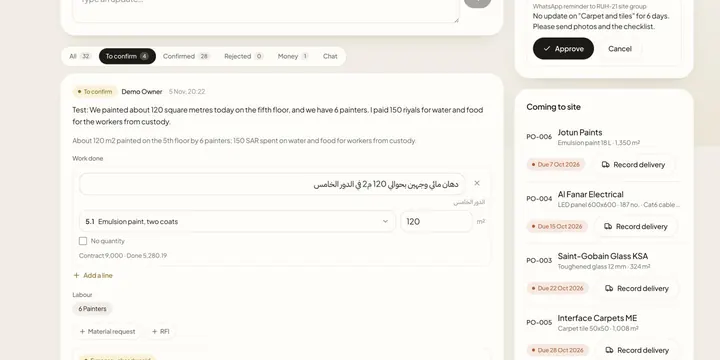 Confirm a site updateCheck what Yumio read from a site update, correct the BOQ lines and quantities, then confirm it so it counts in progress, or reject it.
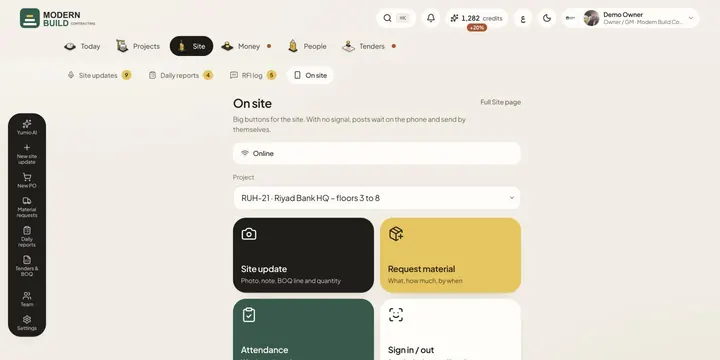 On siteA phone screen with big buttons for site updates, material requests, attendance, worker sign-in and RFIs, which keeps working with no signal.
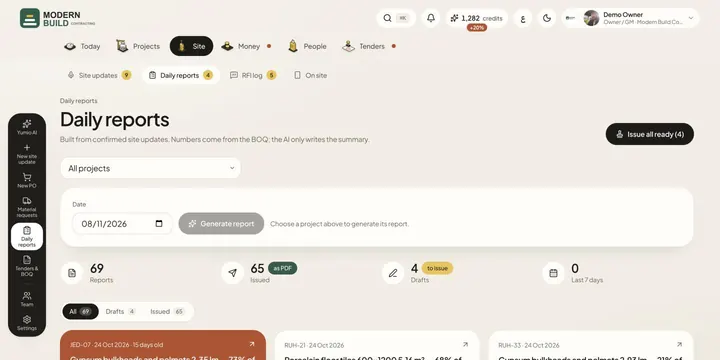 Daily reportsBuild the daily progress report from confirmed site updates, check it, issue it, and print it or send it as a PDF.
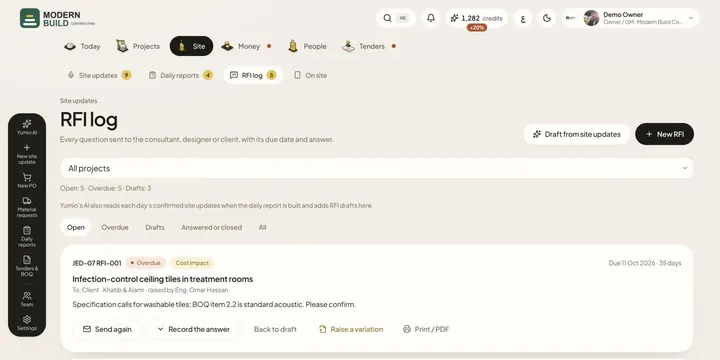 RFI logKeep every question to the consultant, designer or client in one log, with its due date, how long it has waited and the answer.
- Inspection requestsRaise work (WIR) and material (MIR) inspection requests, send them to the consultant, and record the A, B or C result in one tap.
Still stuck?
Write to us in Arabic or English and we will help.