Tenders
Tender files
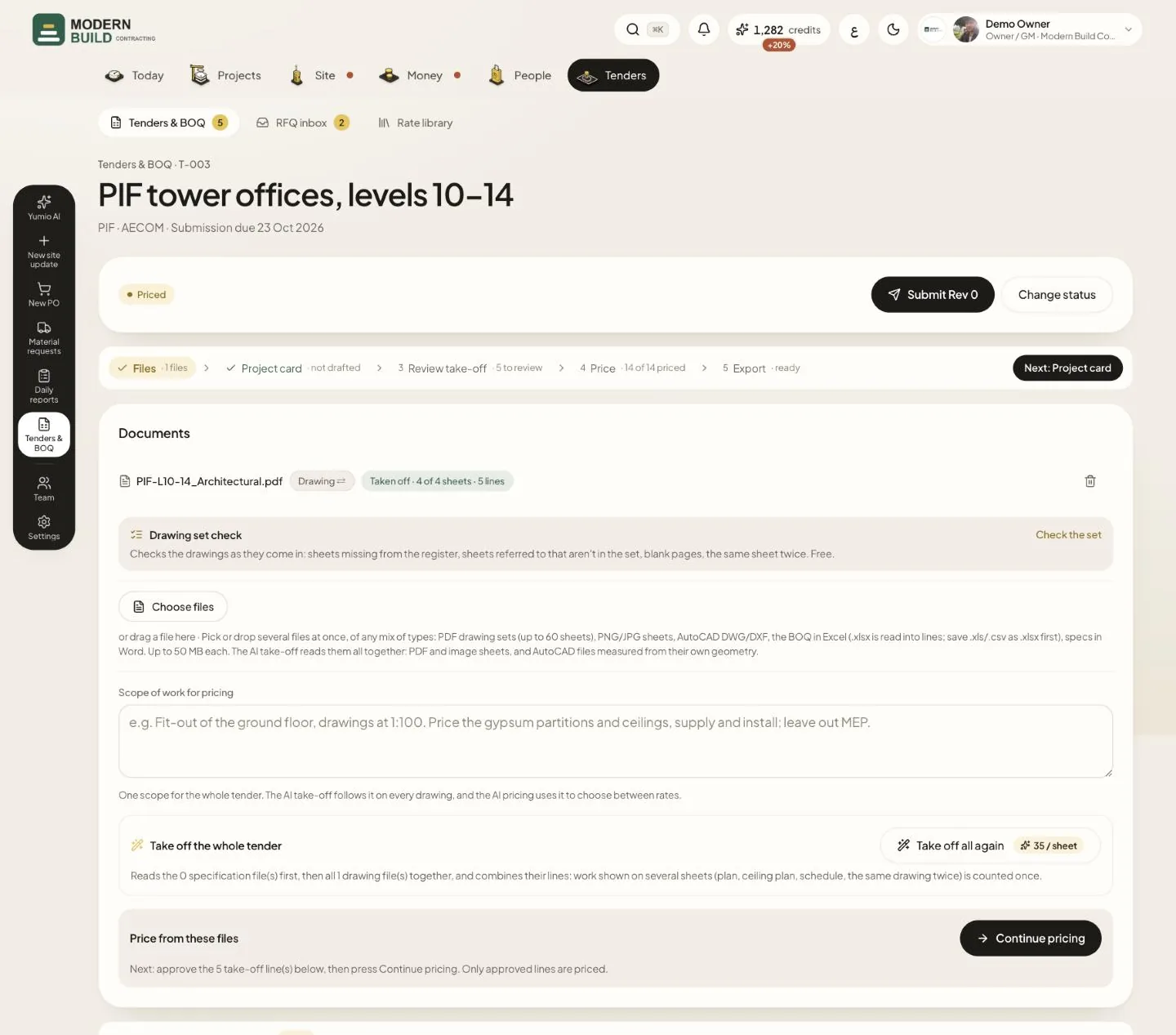
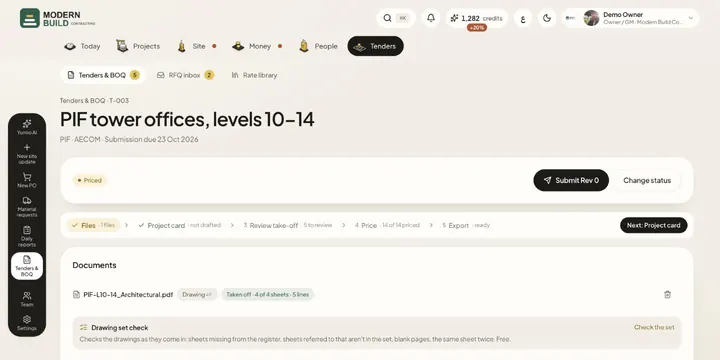
Each tender keeps its documents in one place: the Documents card in the Files step of the tender page. Files that came with the RFQ email are here too. The owner, project managers and the QS / technical office can add and remove them.
Step by step
- 1Open the tender and press Files in the tender steps (or the folded Files · Project card line) to show the Documents card.
- 2Press Choose files, or drop files on the card, then press Upload file (or Upload N files). Drawings (PDF, PNG/JPG, AutoCAD DWG/DXF), the BOQ in Excel and specifications in Word can go in together, up to 50 MB each.
- 3Check how each file will be read. Its badge says Drawing or Specification; press it (⇄) to switch if Yumio guessed wrong.
- 4Remove a file with its bin button (Delete file). Take-off lines from it that nobody approved go with it; approved lines stay. A file that came with an email is only taken off the tender and stays with its email.
- 5Write the Scope of work for pricing and press Save. The AI take-off follows it on every drawing, and the AI pricing uses it to choose between rates.
- 6When the files are in, press Start pricing (or Continue pricing) under Price from these files. The line below the button says what happens next.
What you see on the screen
- 7The badge beside a file shows that file's own take-off, for example Taken off · 4 of 4 sheets · 5 lines.
- 8A BOQ in Excel (or a PDF read as a BOQ) shows Read BOQ: it reads that file into lines for you to check before they are added.
More in this section: Tenders
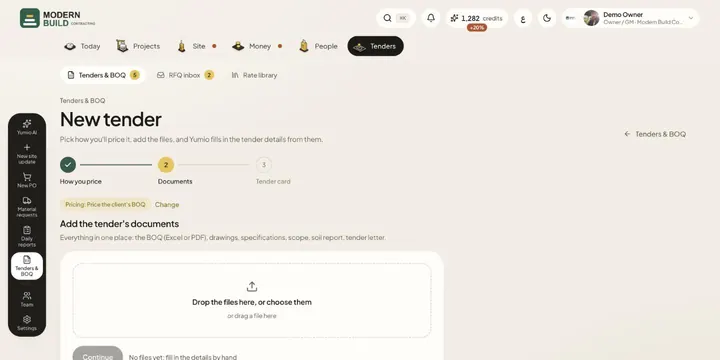 New tenderStart a tender from its documents: pick how you'll price it, add the files or import an RFQ email, and Yumio fills in the details.
- Tender cardCheck the name, client, dates and terms Yumio read from the tender documents, type only what's missing, and confirm in one tap.
 Whole-tender take-offLet the AI read all the tender's drawings and specifications together, follow each file's progress, and get draft BOQ lines to review.
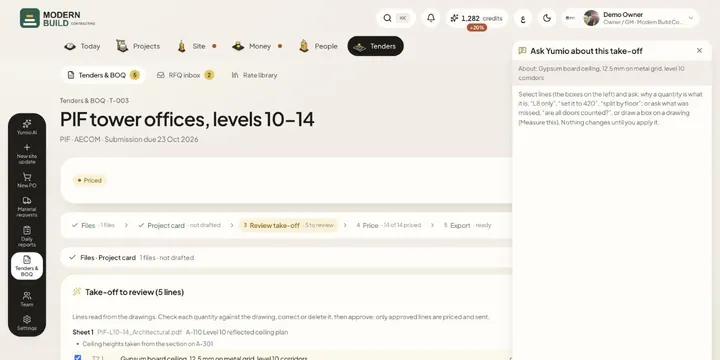 Ask Yumio about the take-offCheck the take-off's draft lines, ask Yumio why a quantity is what it is or what was missed, apply its corrections, and approve.
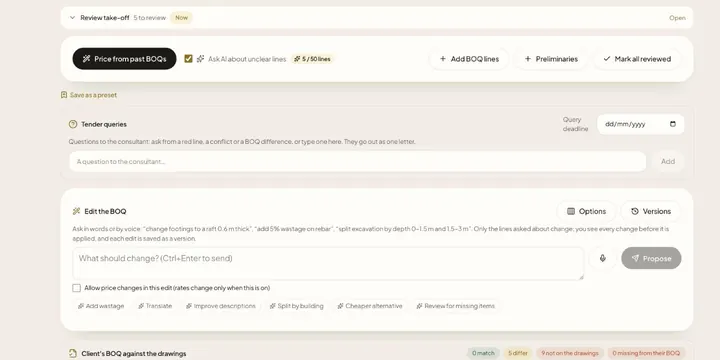 Pricing a tenderPrice every BOQ line from your rate library, see where each rate came from, pick another past rate or type your own, and mark lines checked.
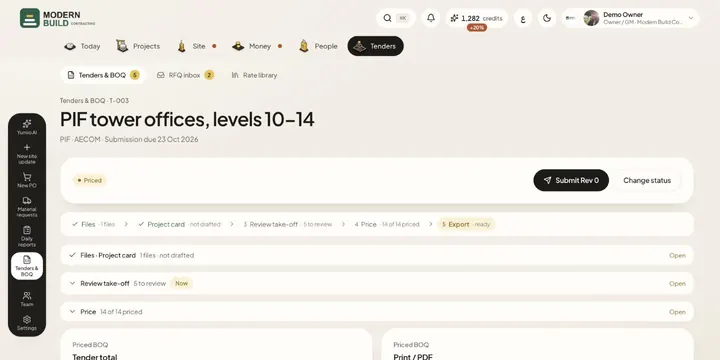 Export and submit a tenderSet the quotation terms and markup, check the total and margin, download Excel or print the priced BOQ, and submit it as a revision.
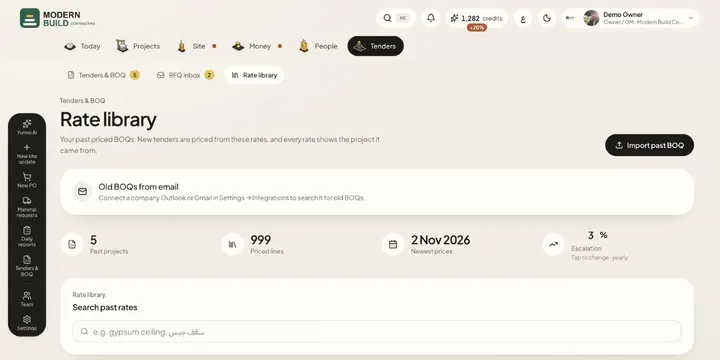 Rate libraryKeep your past priced BOQs and price books in one library, search their rates, and set the yearly escalation tenders are priced with.
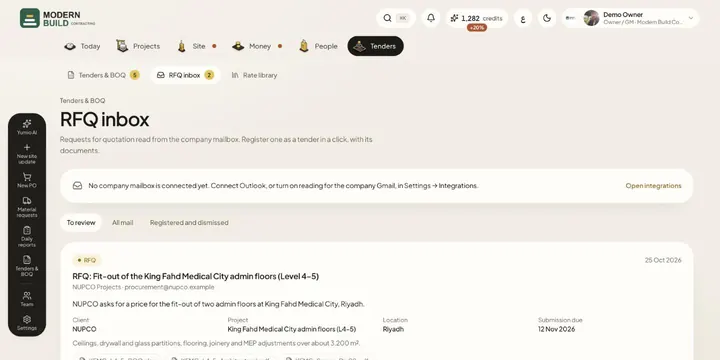 RFQ inboxSee the requests for quotation read from the company mailbox, register one as a tender with its documents, or dismiss it.
Still stuck?
Write to us in Arabic or English and we will help.