Tenders
Export and submit a tender
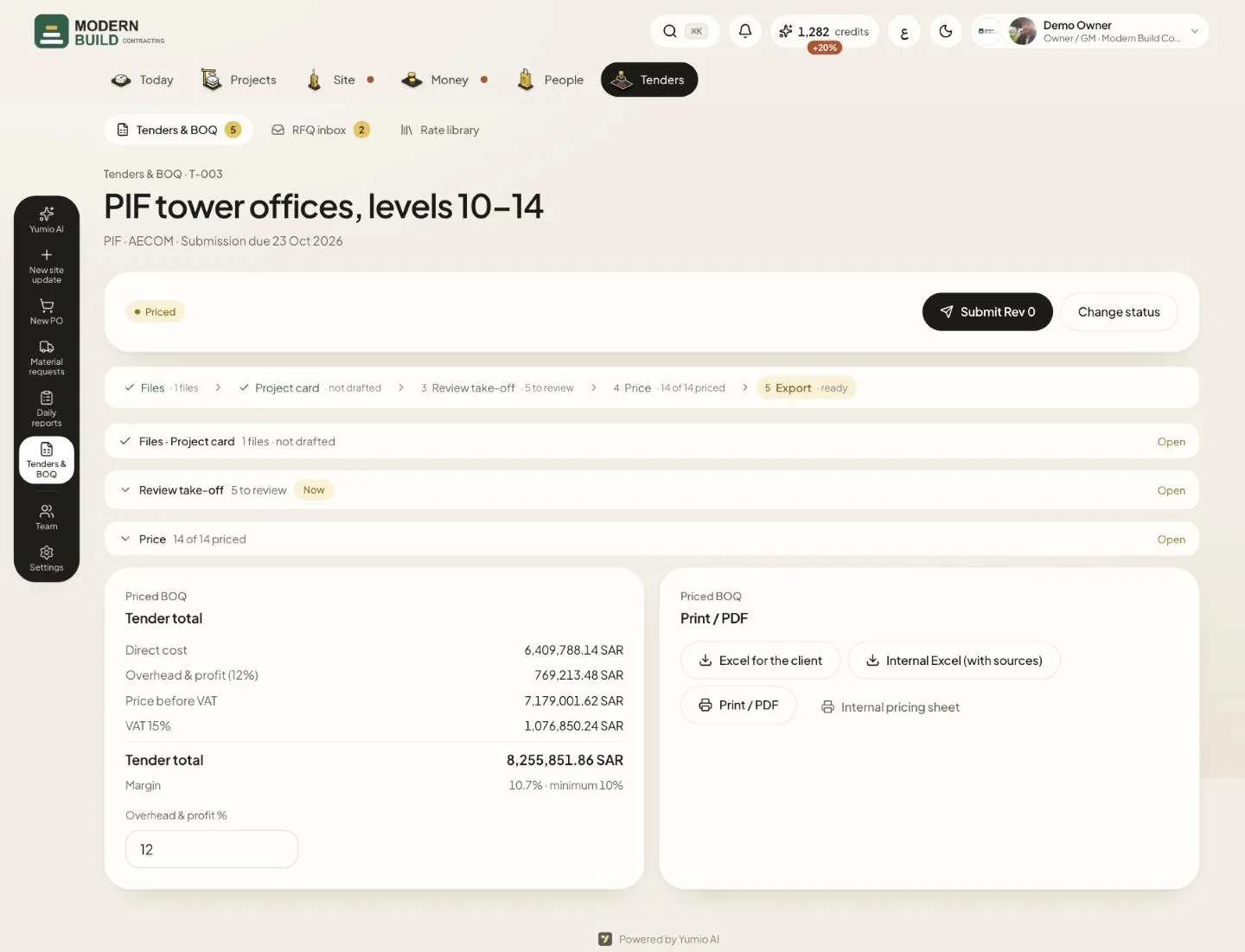
The Export step holds what the client receives: the terms, the totals and the files. Submitting freezes the tender as a numbered revision (Rev 0, Rev 1 and so on).
Step by step
- 1Fill in Terms of the quotation: Discount, Validity (days), Payment terms, delivery, Exclusions and qualifications (one per line), then press Save.
- 2Set Overhead & profit % under the totals. It is built into each rate the client sees, never shown as a line of its own.
- 3Download the BOQ: Excel for the client, or Internal Excel (with sources) with the source of each rate. Dimension sheets shows how each measured line was measured.
- 4Press Print / PDF for the client's quotation, or Internal pricing sheet for your own copy.
- 5At the top of the tender, press Submit Rev 0, check the Cover note, then press Submit. Later changes go into a new revision (Start a revision), and Change status records the outcome, such as Awarded or Lost.
What you see on the screen
- 6Price before VAT is the direct cost plus overhead & profit, less any discount; Tender total adds VAT. It reads Provisional total while some lines have no rate.
- 7Margin is the price before VAT less the direct cost, as a share of the price before VAT. It turns red below the company's minimum (minimum 10%).
- 8A revision below the minimum margin, or with more discount than the limit, waits for the owner: Rev N waits for the owner's approval, with Approve and submit or Send back.
More in this section: Tenders
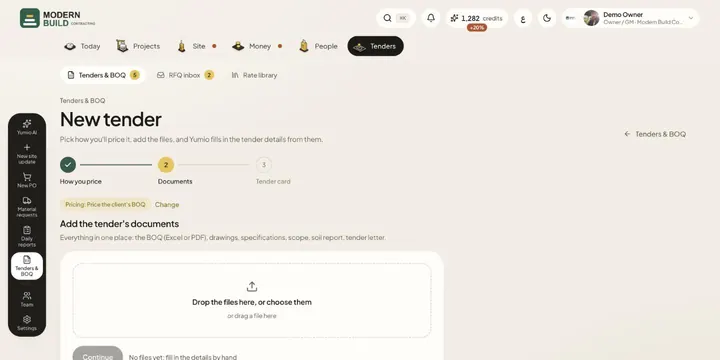 New tenderStart a tender from its documents: pick how you'll price it, add the files or import an RFQ email, and Yumio fills in the details.
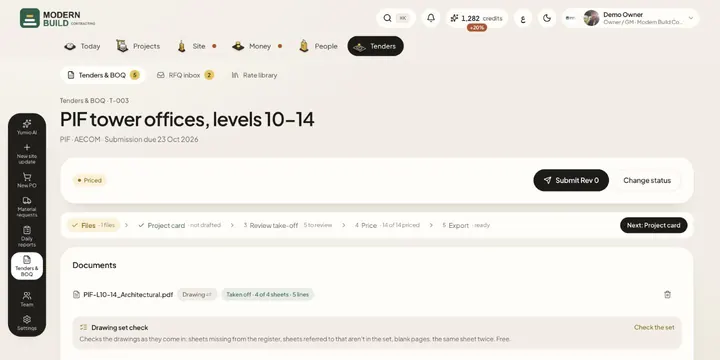 Tender filesAdd and remove a tender's documents, choose how each file is read, and write the scope of work the take-off and pricing follow.
- Tender cardCheck the name, client, dates and terms Yumio read from the tender documents, type only what's missing, and confirm in one tap.
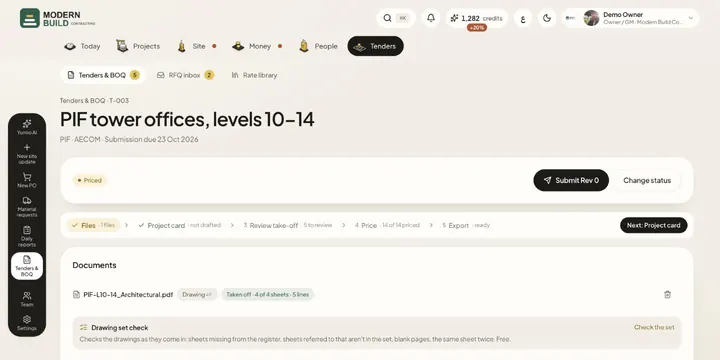 Whole-tender take-offLet the AI read all the tender's drawings and specifications together, follow each file's progress, and get draft BOQ lines to review.
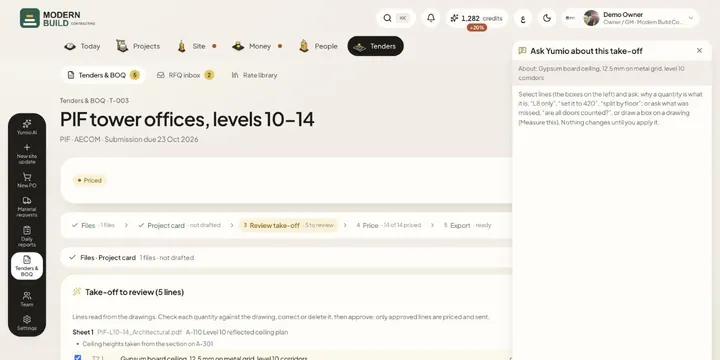 Ask Yumio about the take-offCheck the take-off's draft lines, ask Yumio why a quantity is what it is or what was missed, apply its corrections, and approve.
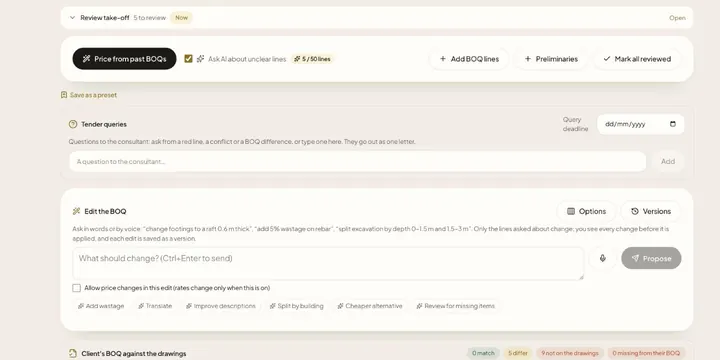 Pricing a tenderPrice every BOQ line from your rate library, see where each rate came from, pick another past rate or type your own, and mark lines checked.
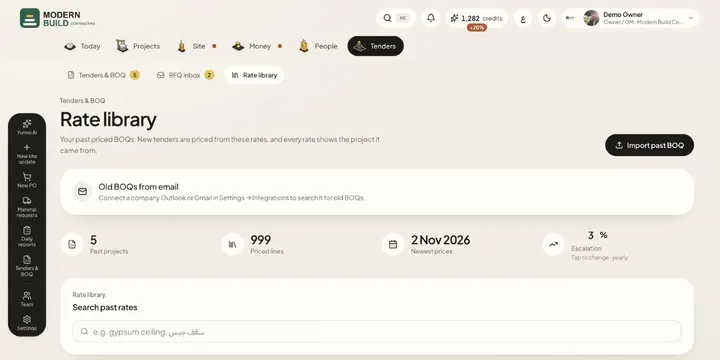 Rate libraryKeep your past priced BOQs and price books in one library, search their rates, and set the yearly escalation tenders are priced with.
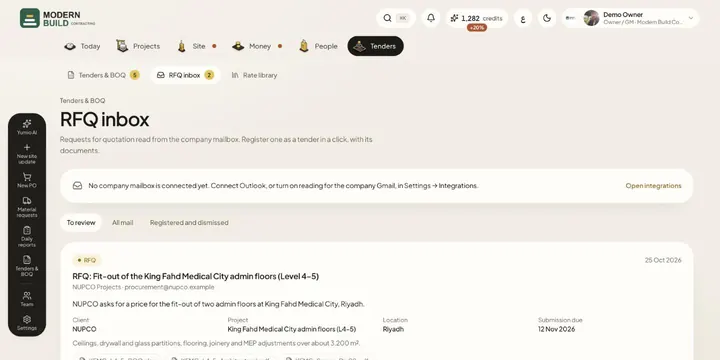 RFQ inboxSee the requests for quotation read from the company mailbox, register one as a tender with its documents, or dismiss it.
Still stuck?
Write to us in Arabic or English and we will help.