Today
Site view
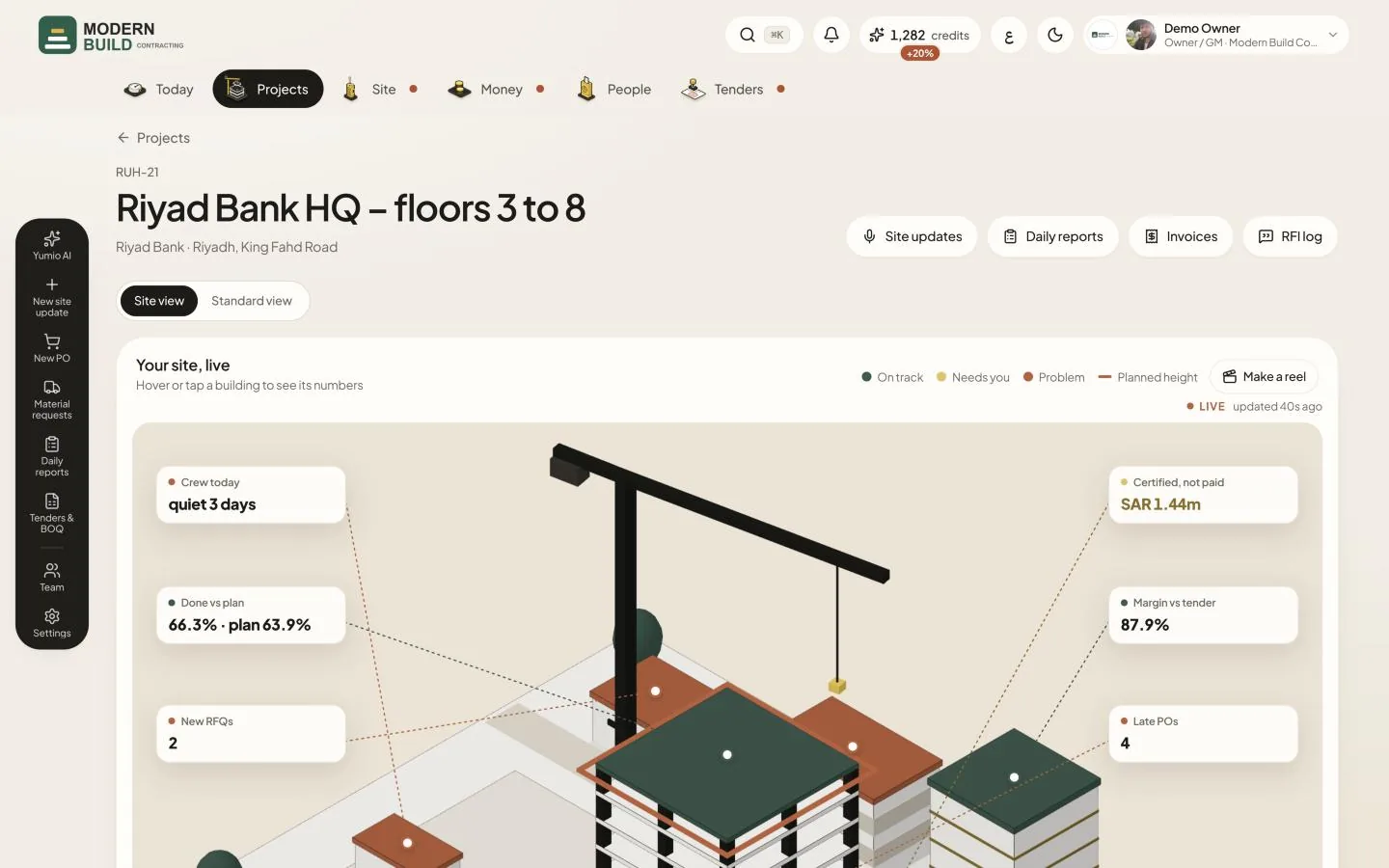
On a project's page, Your site, live draws the project as a small site: the Structure, the Site cabin, the Vault, the HQ and the Warehouse, plus the company's Mailbox and Pricing office. On Today the same view draws one building per live project.
Step by step
- 1Pick Site view in the view switch above the page. Pick Standard view to go back to the plain figures; the choice is the same on Today and on every project.
- 2Read the floating cards beside the picture: Crew today, Done vs plan, and for money roles Certified, not paid and Margin vs tender. Press a card to show its building.
- 3Point at a building, or tap it on a phone, to see its numbers. The button at the foot of the box opens the screen that holds them, such as Open BOQ progress, Open site updates or Open IPCs.
- 4When the 3D model has loaded, drag the picture to walk round it, or use the turn buttons under it (Drag to walk round).
- 5Read the heading Your site, live and its hint: the numbers are live, and the LIVE badge says how fresh they are.
What you see on the screen
- 6Colours: green is On track, yellow is Needs you, red is Problem. The red line on a building is its Planned height, where it should be today.
- 7On Today, a building's height is the work done from approved site progress, the scaffold top is where the plan says it should be today, and a flag marks a project Behind plan. Bigger contracts get taller buildings.
More in this section: Today
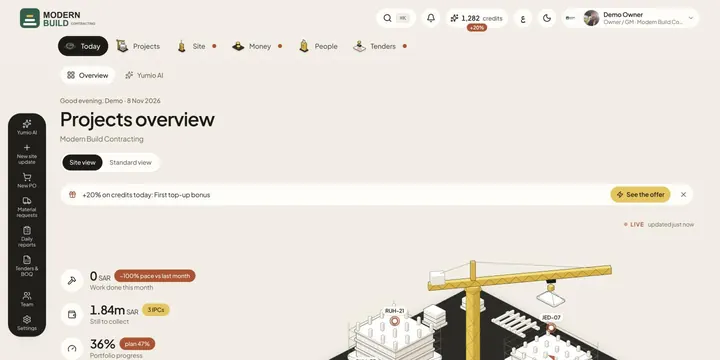 TodayThe Today page shows your company's day at a glance: headline figures, what needs you, and every project in a site view or a standard view.
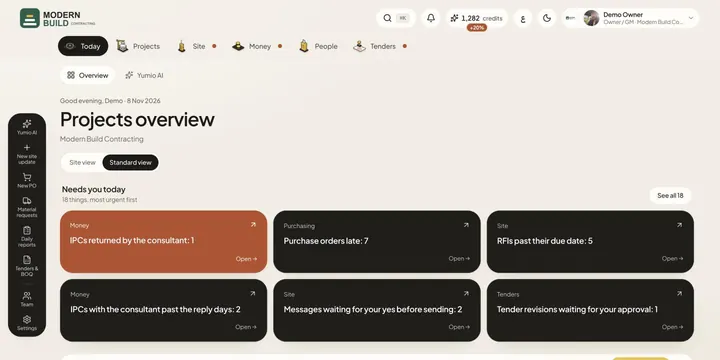 Needs you todayOne list of everything waiting on you across the company, most urgent first, each a tap away from the page where you deal with it.
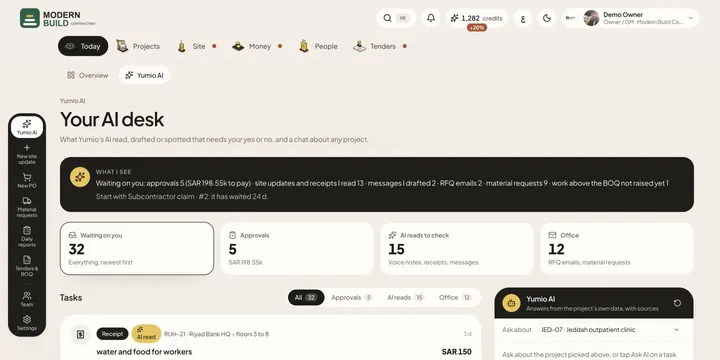 Yumio AIApprove or reject what Yumio's AI read, drafted or spotted, and ask the AI about any project, with answers from the project's own data.
Still stuck?
Write to us in Arabic or English and we will help.