Projects
Programme
The Programme tab is a light schedule built from the BOQ. Yumio compares it with the approved work from site, so you see if the project is on track and by how many days. The owner, project managers and the QS set it up and change it.
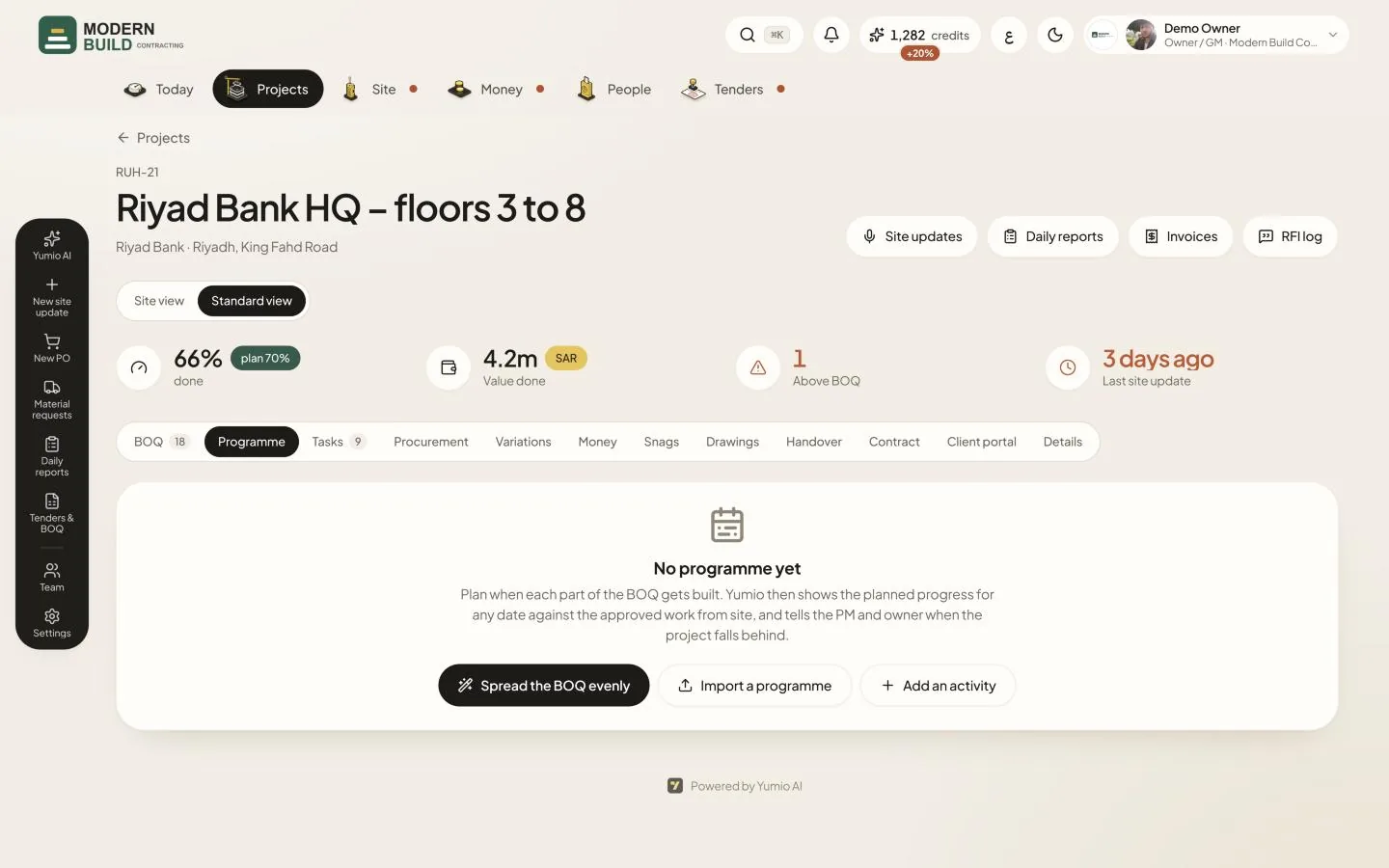
Step by step
- 1To start, press Spread the BOQ evenly: Yumio makes one activity per BOQ section between the start and finish you choose. On a programme that already exists the button reads Spread the BOQ again.
- 2Or press Import a programme and pick an Excel or CSV file with an activity, a start and a finish column. Check how each activity was matched to a BOQ section before you use it.
- 3Press Add an activity to add one by hand, with its names, BOQ section, dates and the activities it Starts after.
- 4In Activities, drag a bar to move it, or drag its ends to change its dates. The pencil button opens the activity to type dates or delete it.
What you see on the screen
- 5Planned by today is where the programme says the project should be today; Done is the approved work. The badge reads On track, Behind or Ahead (more than 3 days either way).
- 6Against the programme gives the days behind or ahead and the forecast finish date at today's pace.
- 7Schedule performance (SPI) is earned value ÷ planned value; under 1 is behind. Its badge is the cost performance (CPI). The chart Planned against done shows the same in money or in %. Only roles that see money get the values.
- 8Each activity has its dates, a status badge (Not started, On track, days behind or ahead, Done) and its done %. A faded bar after it is the forecast finish.
More in this section: Projects
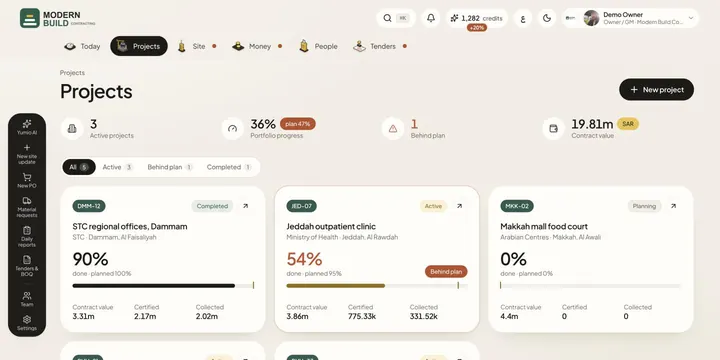 ProjectsSee every project's progress against its plan, find the ones behind, add a new project and open any of them.
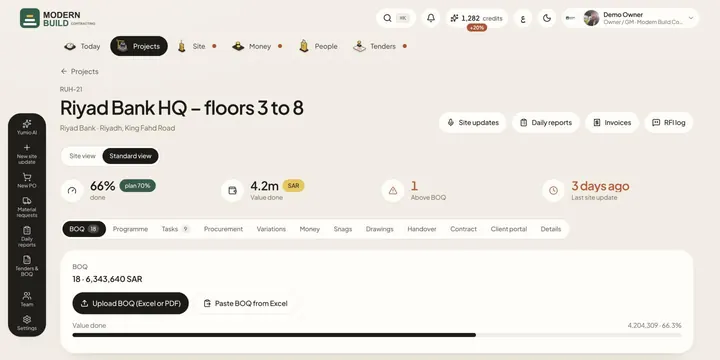 Project BOQLoad the project's BOQ from Excel, PDF or a paste, and follow how much of each line is done from confirmed site updates.
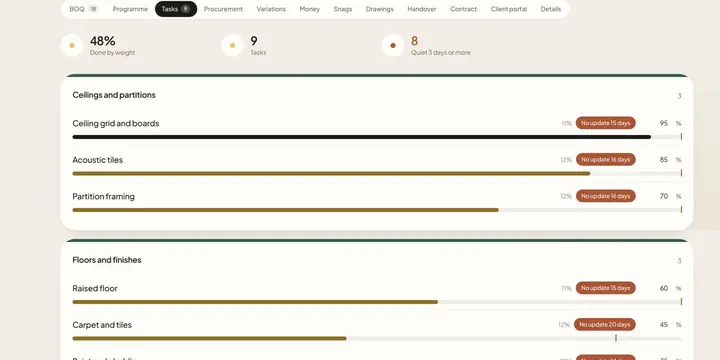 TasksKeep the project's tasks by phase, with each task's weight and % done, and spot the ones with no update for three days.
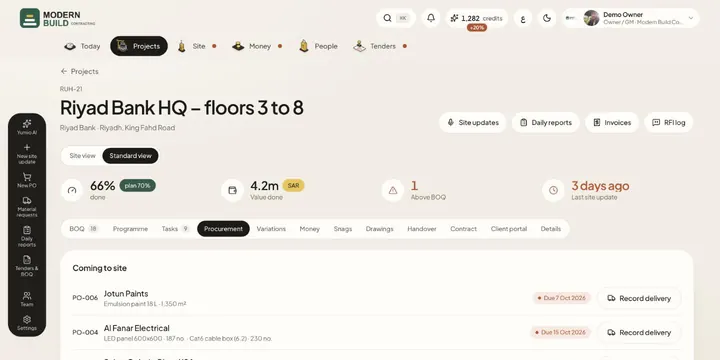 Project procurementSee what this project must order and by when, its purchase orders, deliveries coming to site and its material requests.
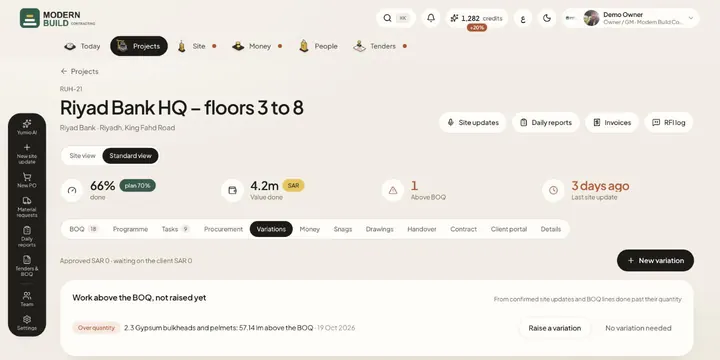 VariationsRaise and price variations (VO-001…), send them to the client, record the decision, and add approved lines to the BOQ.
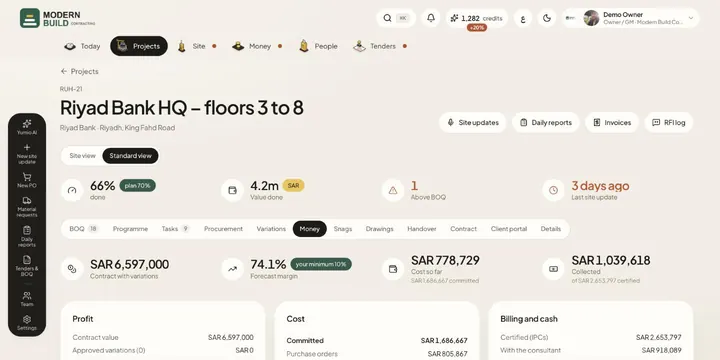 Project moneySee the project's forecast margin, cost so far and committed, what was certified and collected, cash flow, retention and the advance.
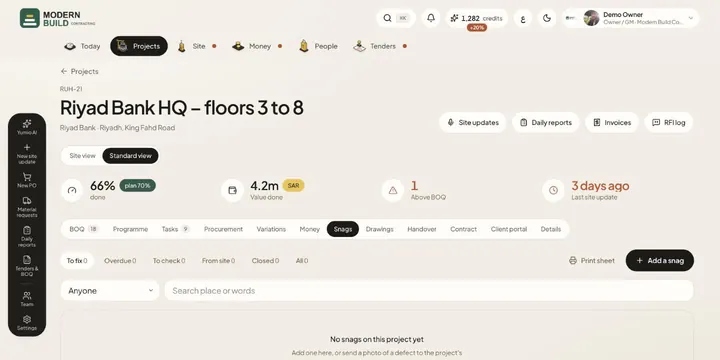 SnagsKeep the project's snag list: where, what, photos and who fixes it by when, then check each fix and close it.
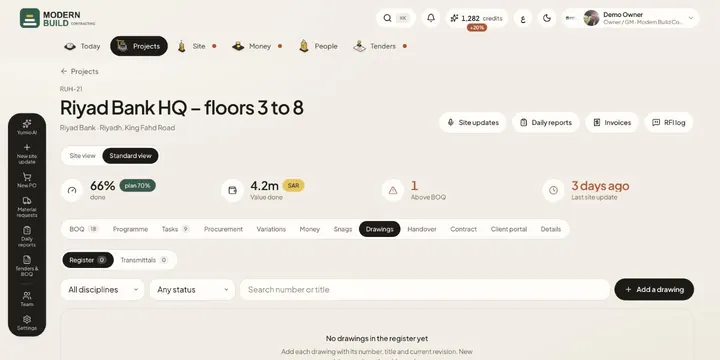 DrawingsKeep the drawing register with the revision in force, and send drawings to the client or subcontractors on a transmittal.
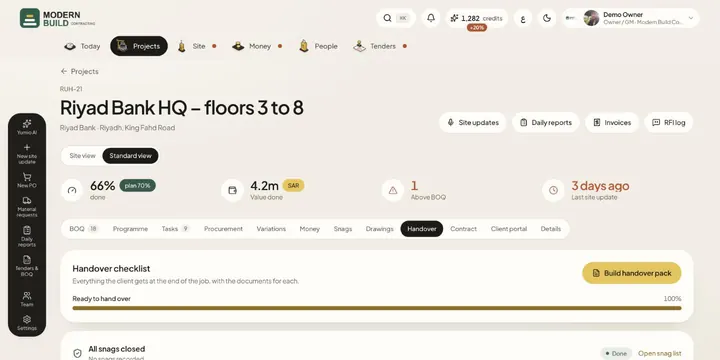 HandoverTrack everything the client gets at the end of the job, upload each document, and build the handover pack in one go.
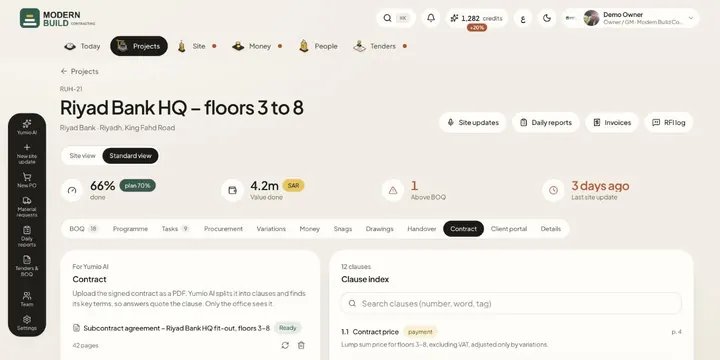 ContractUpload the signed contract as a PDF: Yumio AI splits it into clauses and finds its key terms, so answers quote the clause.
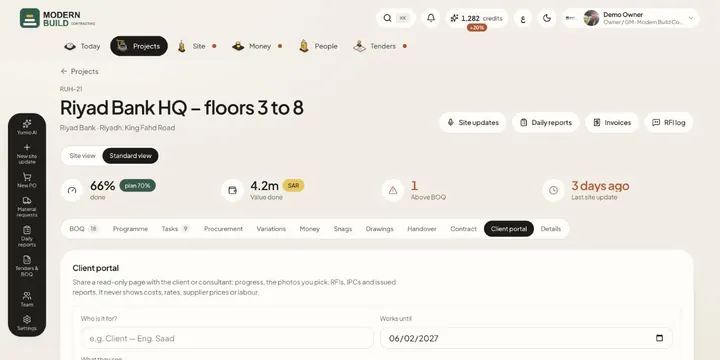 Client portalShare a read-only page with the client or consultant: progress, chosen photos, RFIs, IPCs and issued reports, never costs.
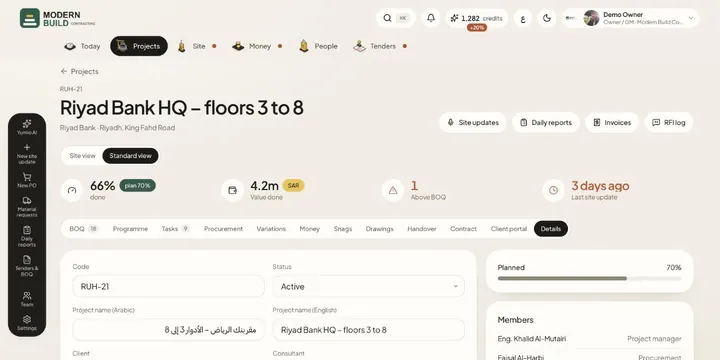 Project detailsChange the project's code, names, client, consultant, dates, value and terms, and see who is on the project.
Still stuck?
Write to us in Arabic or English and we will help.